
Upgrading a Theme to Use wp-scripts

A couple of months ago, while upgrading Mixin’ Styles- GB, I decided I wanted the build process line up with WordPress standards. It is a block theme, after all.
The way I set up the previous build, I wasn’t able to work on files that would automatically be minified, as I saved separate .min files. Then, I found out about the @wordpress/scripts packages.
Seeing as these are more geared toward block development, I searched for how to use the scripts with a theme. I ended up finding my way to the official Build Process how to.
In this tutorial, I adapted the build process to work with Mixin’ Styles- GB.
Of note is that this tutorial follows a series of previous tutorials ending with Moving Your Theme Outside of WordPress- Part 2. WordPress scripts work differently than that, so if you followed the previous tutorials we will be moving the theme back into the WordPress environment. But we will get into that later.
Folder Structure
I used the help of AI to ask what a typical folder structure for an @wordpress/scripts setup should look like. It presented me with the folder in the image below:
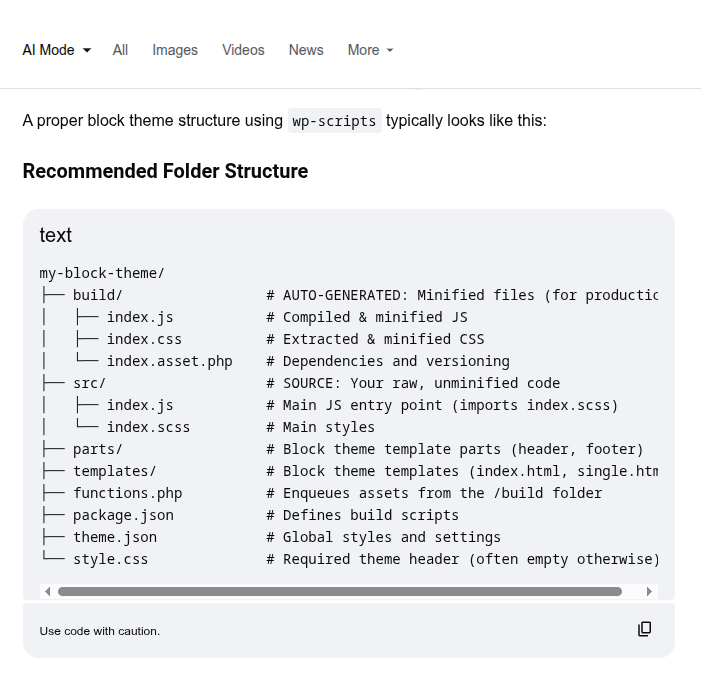
This structure places our compiled JavaScript and CSS into a build folder and the source files into a src folder, which I renamed resources.
The parts, templates folders, functions.php, etc. go outside of the build folder.
The Previous Setup
I provided a sample file at GitHub, if you would like to follow along with a hands-on approach. To download, click the link, then click the Raw button in top right.
If you are following this tutorial but are not using the sample file, or if you did not follow any of the previous tutorials, you can skip this part.
For this tutorial’s purpose, we can place the sample theme in a Development folder in your home folder.
Our previous setup placed almost everything inside the build folder, while placing package.json and node_modules outside of it.
We originally had a symbolic link that pointed from the local WordPress themes folder to the build folder in the theme, which was in a separate location.
We can remove that link and recreate it to point to the parent folder instead. Type the following command (assuming the sample file in a Development folder):
ln -s ~/Development/mixin-styles-gb-011226 /srv/http/wordpress/wp-content/themes/mixin-styles-gbNote, you may need to precede this with sudo and type in your administrator password if you are on Linux.
If you refresh the front end, you will see a “Stylesheet is missing” error. More on that later.
Installing @wordpress/scripts
I originally used different scripts, but by time I created the sample file, I already installed the wp-scripts packages.
If you are using the sample theme, you do NOT need to install the scripts below, as they are already part of the theme. You only need to run npm install to add the needed node_modules packages.
These are just general instructions.
The Build Process page has instructions for how to install, but I will briefly go over them here as well.
- Install Node.js and npm on your local machine
- Install @wordpress/scripts, path and webpack-remove-empty-scripts from the command line. In the folder where your theme is located (my example is srv > http > wordpress > wp-content > themes > mixin-styles-gb), type:
npm install @wordpress/scripts path webpack-remove-empty-scripts --save-dev
For most themes, you will want to add a custom webpack configuration file named webpack.config.js. This is documented in the Configuring webpack section of the Build Process page.
After reading that section, I will briefly describe one of the entries in Mixin’ Styles- GB, for example.
"js/block-styles": path.resolve(process.cwd(), "resources/js", "block-styles.js"),I didn’t exactly understand some parts, so I asked google.com/ai for an analysis.
The first part, before the colon, is the entry name. It is important how you name this, as it generates a path to your final file location, relative to the path specified in the build and start scripts in package.json. In this theme, it is build/assets/js/block-styles.js.
path.resolve along with process.cwd() retrieves an absolute path based on the current (parent) directory.
Then, the entry looks for block-styles.js within the resources/js directory. The resources folder houses your uncompiled source files.
These entries refer to files enqueued for your theme in functions.php.
Addressing the “Stylesheet is Missing” Error
When we last left off, there was an error and no rendering of anything. This is because the main style.css file is still in the build folder and needs to be moved to the parent. We can now do this.
Next, we get the “Template is missing” error. The theme also needs at least an index.html file.
We’ll do one better by moving the templates and parts folders to the parent folder.
By this point, if you refresh the theme, everything visual should break and it will look like the screenshot below:
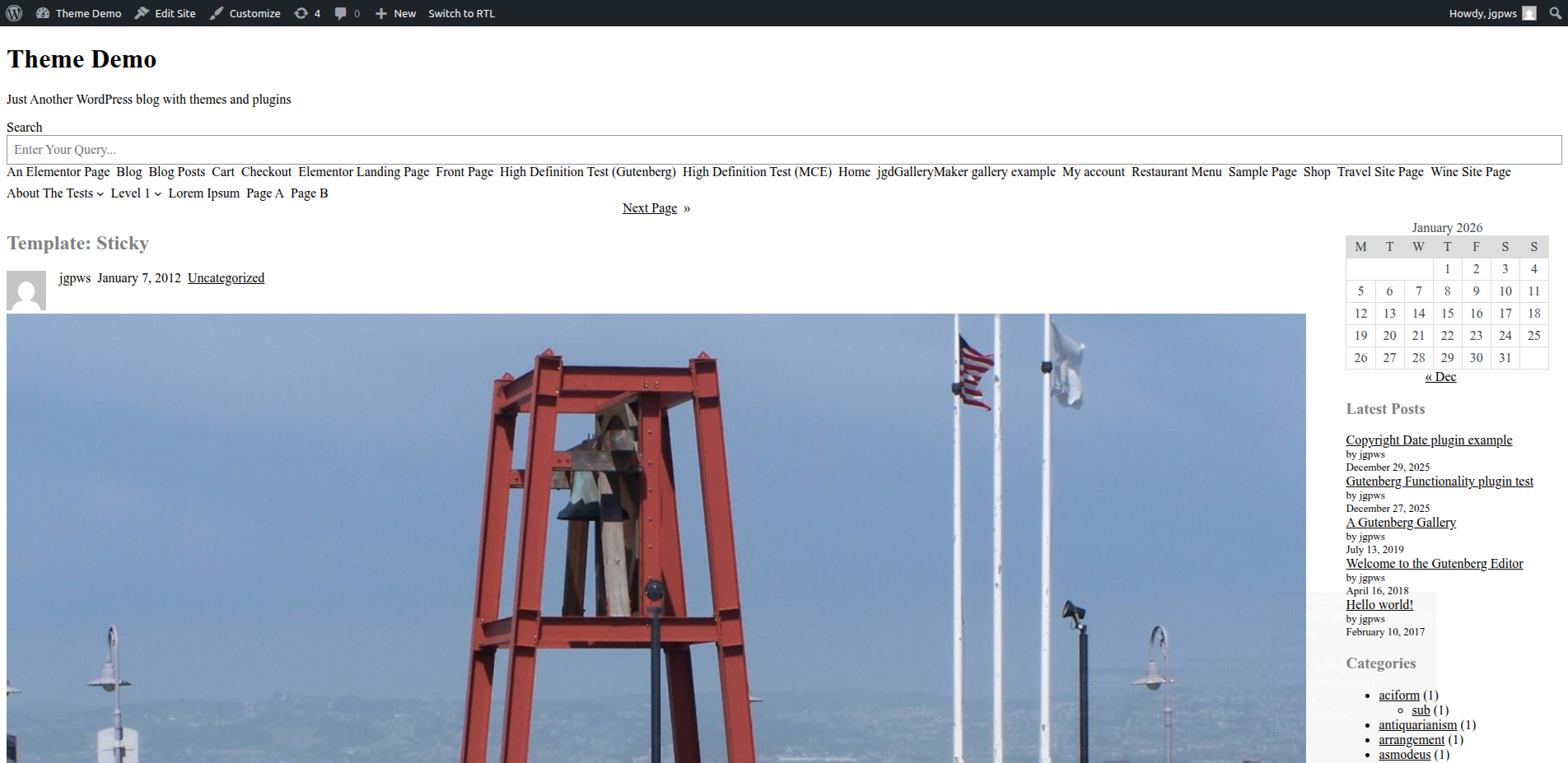
Next, we can move the patterns and styles directories over to the parent, as well as the top level files (functions.php, theme.json, index.php, screenshot.png, LICENSE and readme.txt).
After refreshing the front page again, some styles are still broken and there are missing files.
Missing CSS and JavaScript Files
Since we now are pointing at our parent folder and the build folder is now inside of it, we have to adjust several paths in the sample theme’s functions.php.
Let’s start with the stylesheets. In a text editor, find the term mixin-styles-gb-style. From here, we will prepend build/ before each path listed in get_theme_parent_file_path and get_theme_file_uri. For example:
wp_enqueue_style( 'mixin-styles-gb-base', get_theme_file_uri( 'build/assets/css/theme/base-styles.css' ), …Toward the bottom of the file, there is a file named mixin_styles_gb_enqueue_block_styles. For this file, we can also adjust the paths.
function mixin_styles_gb_enqueue_block_styles() {

    $block_namespaces = glob( dirname( __FILE__ ) . '/build/assets/block-css/*/' );

    foreach ( $block_namespaces as $block_namespace ) {

        $block_styles = glob( dirname( __FILE__ ) . '/build/assets/block-css/' . $block_namespace . '/*.css' );
		…

        foreach ( $block_styles as $block_style ) {
            wp_enqueue_block_style(
            …
                array(
                …
                    'src' => get_theme_file_uri( 'build/assets/block-css/' . $block_namespace . '/' . $block_style . '.css' ),
                    'path' => get_theme_file_uri( 'build/assets/block-css/' . $block_namespace . '/' . $block_style . '.css' ),
                ),
            );
        }
    }
}
…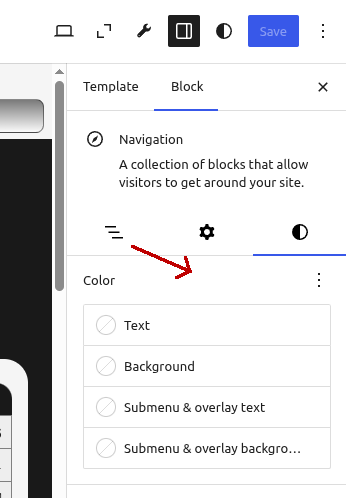
In the screenshot above, the arrow is pointing to where the Block Styles should be.
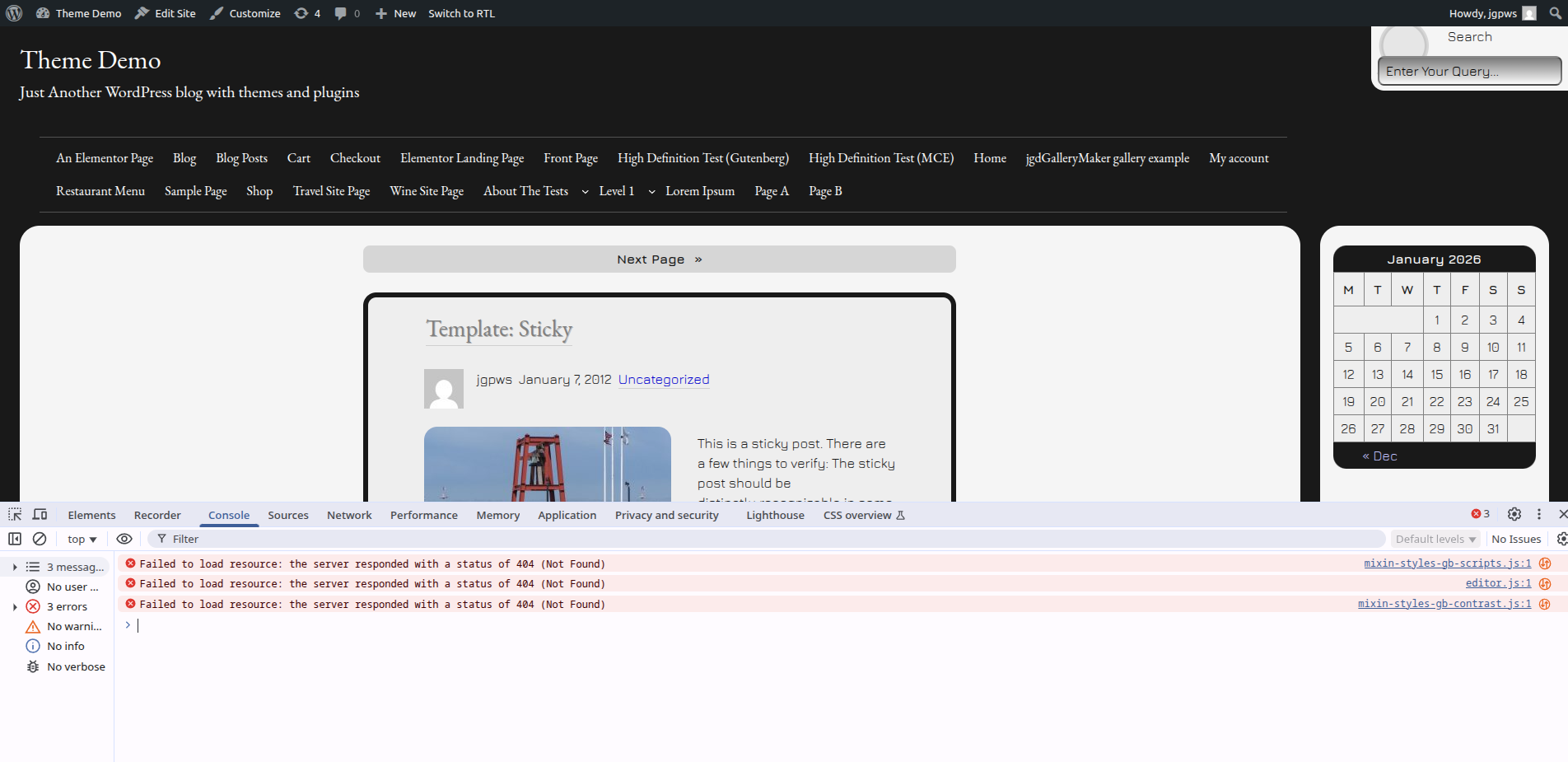
After refreshing the front end again, if you open the console (Ctrl or Cmd + Shift + I, click Console), you will see a “Failed to load resource” error or similar. This means we need to adjust our paths for each JavaScript file, too.
// Scripts
wp_enqueue_script( 'mixin-styles-gb-scripts', get_theme_file_uri( 'build/assets/js/mixin-styles-gb-scripts.js' ), array(), filemtime( get_template_directory() . '/build/assets/js/mixin-styles-gb-scripts.js' ), true );
…
Fixing theme.json
This one is pretty simple. In order for our theme to see our custom fonts, we need to prepend their paths too. Below is an example for the body font, Jura.
{
…
  “settings”: {
  …
    "typography": {
      …
      "fontFamilies": {
        {
          “fontFace: [
            {
              "fontFamily": "Jura",
              "fontStyle": "normal",
              "fontWeight": "400",
              "src": "file:./build/assets/fonts/jura/jura-400-normal.woff2"
            },
            …
          ],
          …
        }
…
}
This must be done for each font.
Testing our CSS and JavaScript Scripts
Now, with everything in place and our paths fixed, we can test to see if the scripts work correctly.
First, in a command line, we can navigate to our theme. If you put the sample theme in home/Development, it would be ~/Development/mixin-styles-gb-011226.
We can now run npm run start. This will automatically load the theme with BrowserSync in your default browser.
Let’s change the color for some of our on page elements. From a text editor, open resources/blocks.scss.
In this file, search for the .wp-site-title, .wp-site-tagline selector and change the color to red. If after saving, the color changes, that means success!
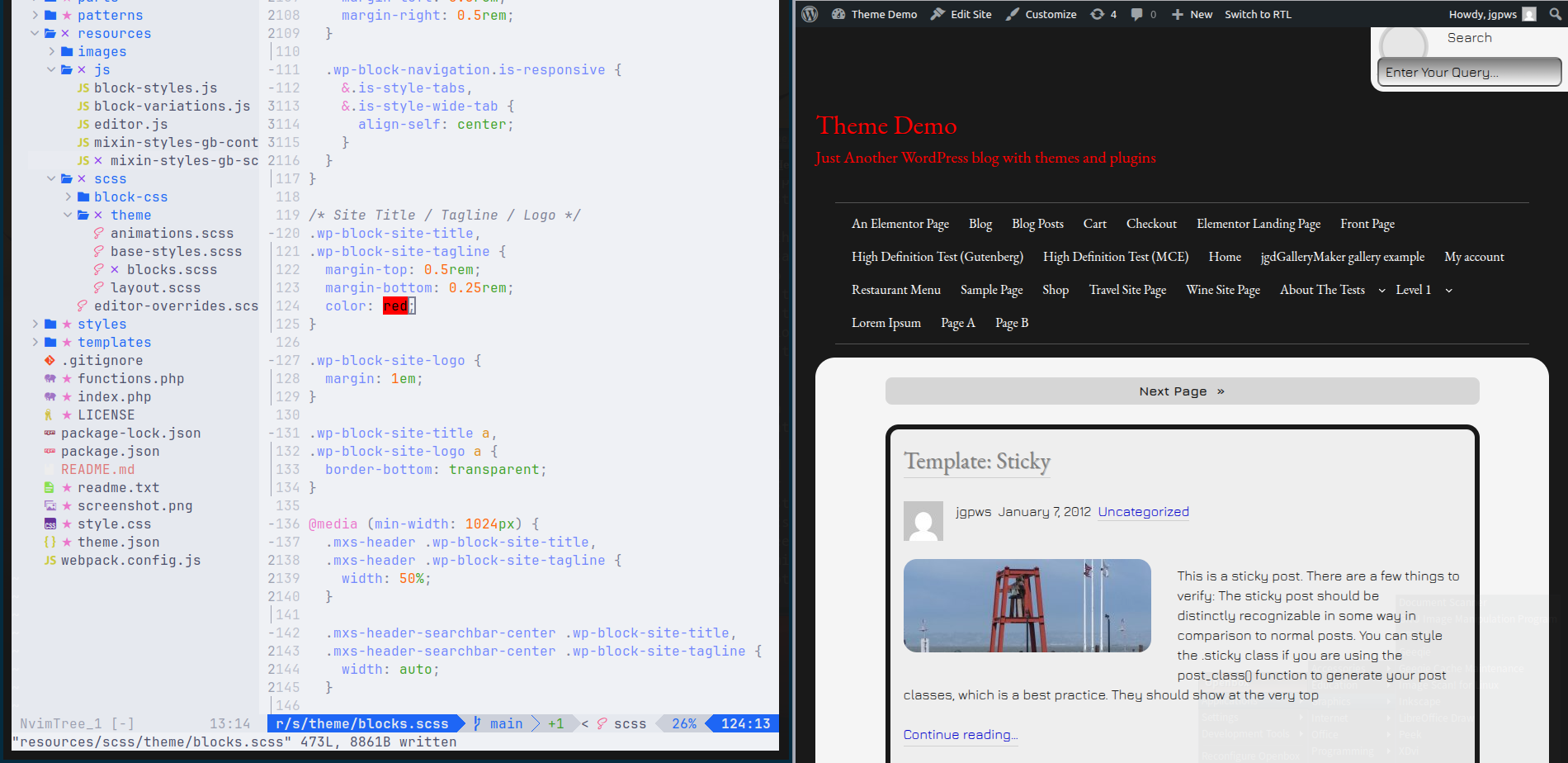
Let’s also check that the JavaScript files are affected by wp-scripts. We can open resources/mixin-styles-gb-scripts.js and add the following to the top of the file:
alert(“A JavaScript file!”)After refreshing the front end page, the alert should pop up.

Be sure to remove these after testing.
Testing Our Finalized Theme Structure
While still in the terminal, type npm run build to finalize our files.
When webpack copies files to the build/assets folder in the sample theme, it adds its own code and references to dependencies. When we run our build script, it compiles modern JavaScript (imports, etc.) into code the browser can understand. It also minifies the code.
If you have any imported modules (separate files used as dependencies for the current file), they are referenced in an asset file. For instance, an editor.js file would have an accompanying editor.asset.php file. The file also includes a cache busting auto generated version number.
To use an asset file in functions.php, check out this example below:
function mixin_styles_gb_scripts() {
    $base_style_asset = include get_parent_theme_file_path( 'build/assets/css/theme/base-styles.asset.php' );
…
    wp_enqueue_style( 'mixin-styles-gb-base', get_theme_file_uri( 'build/assets/css/theme/base-styles.css' ), $base_style_asset['dependencies'], $base_style_asset['version'] );
    …
}
Your final theme directory should not include the node_modules and .git folders, .gitignore, README.md or package-lock.json. To test how the final theme will present, let’s temporarily remove these files by cutting and pasting them elsewhere.
Then refresh the theme one more time to check if all is well (everything should look the same with no errors). Once we’re done, we can restore these important files.
The build process, in short, prepares your theme for production.
Copying to a Distribution (dist) Folder
Now, after updating, we can copy all of the files and folders (minus the above mentioned folders) manually to another folder. We can then zip up the files.
Even though the script for this theme does not zip the files, we can automate copying the files. For this, we will use shx, a cross-platform way to execute shell commands. First, let’s install it.
npm install shx --save-devThen, we add some new commands to our package.json file.
"clean-dist": "shx rm -rf dist",
"copy-dist-folders": "shx mkdir -p dist && shx cp -r build resources styles parts patterns templates dist",
"copy-dist-files": "shx mkdir -p dist && shx cp -r *.php style.css theme.json LICENSE readme.txt screenshot.png package.json webpack.config.js dist",
"copy-dist": "npm run clean-dist && concurrently 'npm:copy-dist-folders' 'npm:copy-dist-files'"
I separated the copying for folders and files so the command wouldn’t be too long. The copy-dist command removes the previous dist folder, then concurrently copies the files and folders at the same time.
Just below the build script, we can add a postbuild script that will run copy-dist after running the build command.
"postbuild": "npm run copy-dist"Remove Date Numbers off of the End of the Sample Theme (optional)
Mixin’ Styles- GB has changed considerably since I saved the sample file for this tutorial. If you want to see the latest version, you can simply remove the –011226 part from the theme folder name.
011226 represents the date I saved the file: January 1st, 2026. Once this is removed, you can update the theme like as if you downloaded it from wordpress.org.
Conclusion
This can be a little involved to set up, but using @wordpress/scripts standardizes a build process for WordPress themes and plugins.
If you are building a public theme for wordpress.org, this is ideal. If another developer needs to work with your theme, they will more likely recognize the build tools.
Are you using @wordpress/scripts with your theme? How was your experience with it? Thanks for reading and following.
Post thumbnail image by OpenClipart-Vectors from Pixabay.
Leave a Reply