Mixin’ Styles- GB 1.4 New Headers and Footer
In a previous post, I introduced new button and navigation styles for the latest version of Mixin’ Styles- GB. As promised, here I will present the new header and footer patterns.
Header Patterns
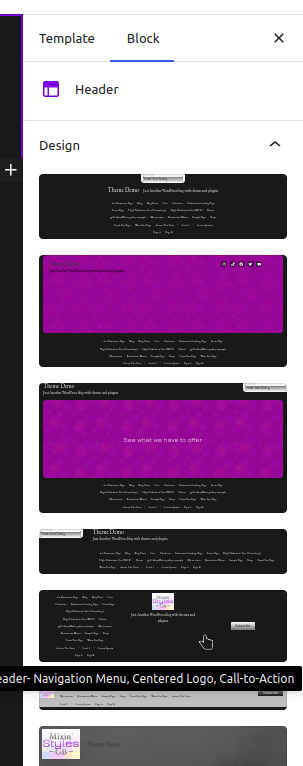
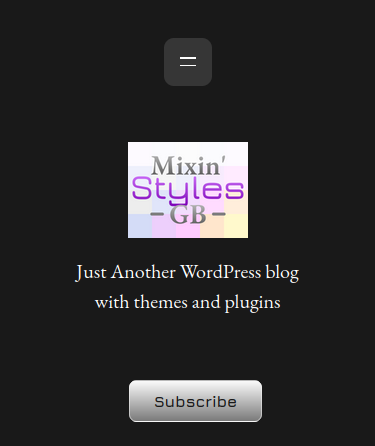
For the header patterns, I will show you where to select from in the Site Editor followed by a representation on the front end.
Navigation Menu, Centered Logo, Call-To-Action
This design takes after one of the designs in the article How to Add a Centered Logo Header in a WordPress Block Theme at Osompress. Check it out, as the patterns presented are pretty impressive. This one uses the second example, with the logo in the center, a menu on the left, and button on the right.

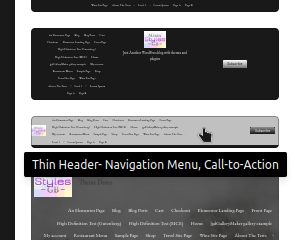
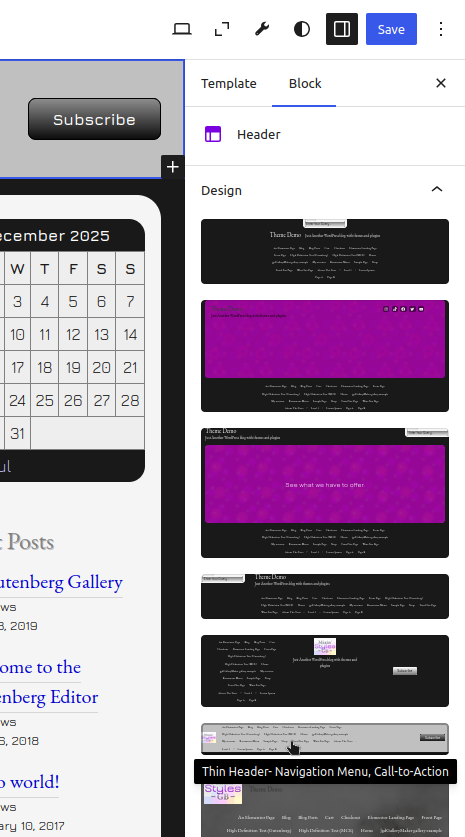
Thin Header- Navigation Menu, Call-To-Action
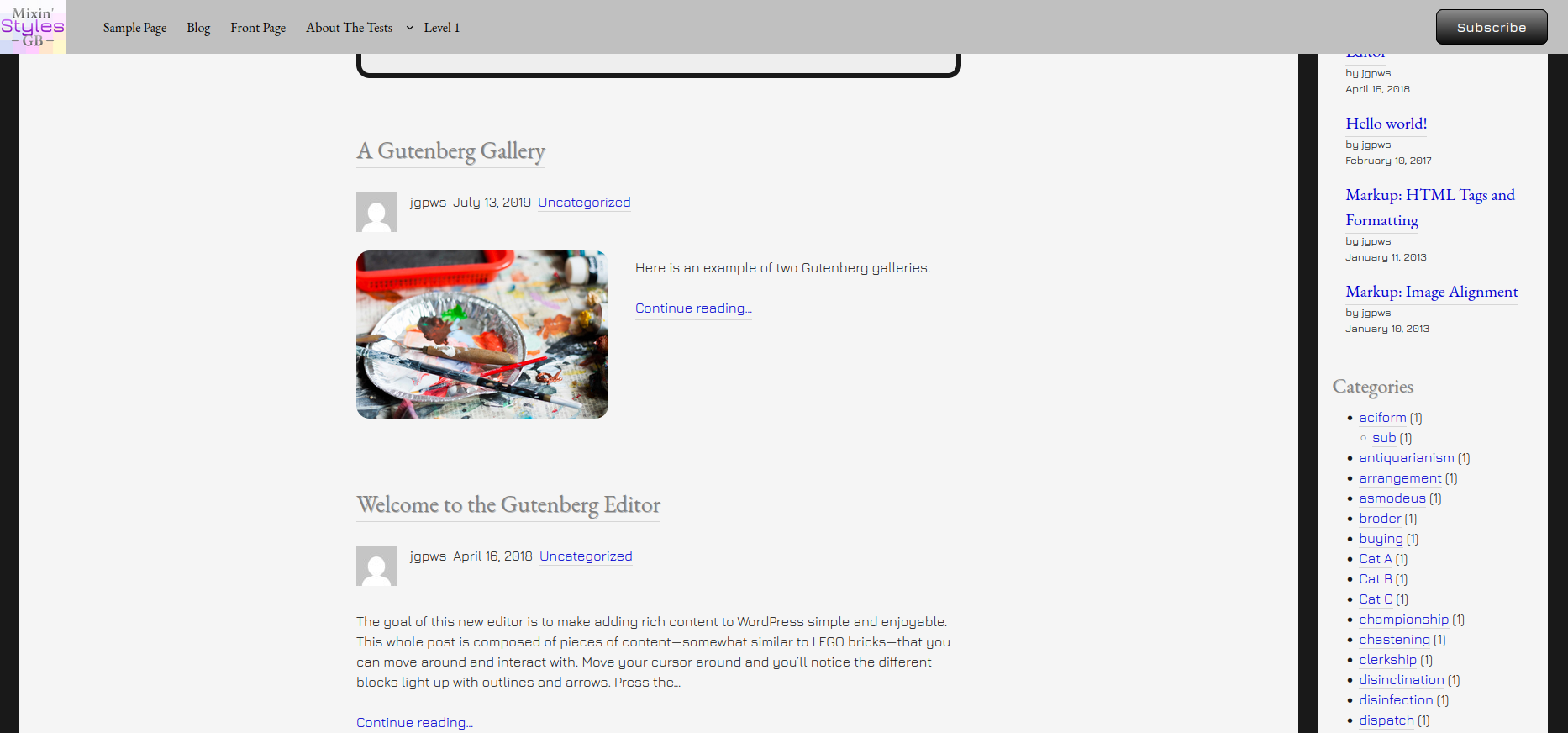
This header design uses WordPress’s built in columns and rows to lay each element out on a single row. Plus, since you can adjust the logo dimensions in the editor, you can make it smaller for maximum screen real estate.


Footer Patterns
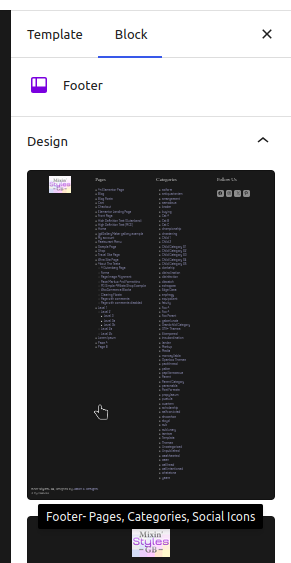
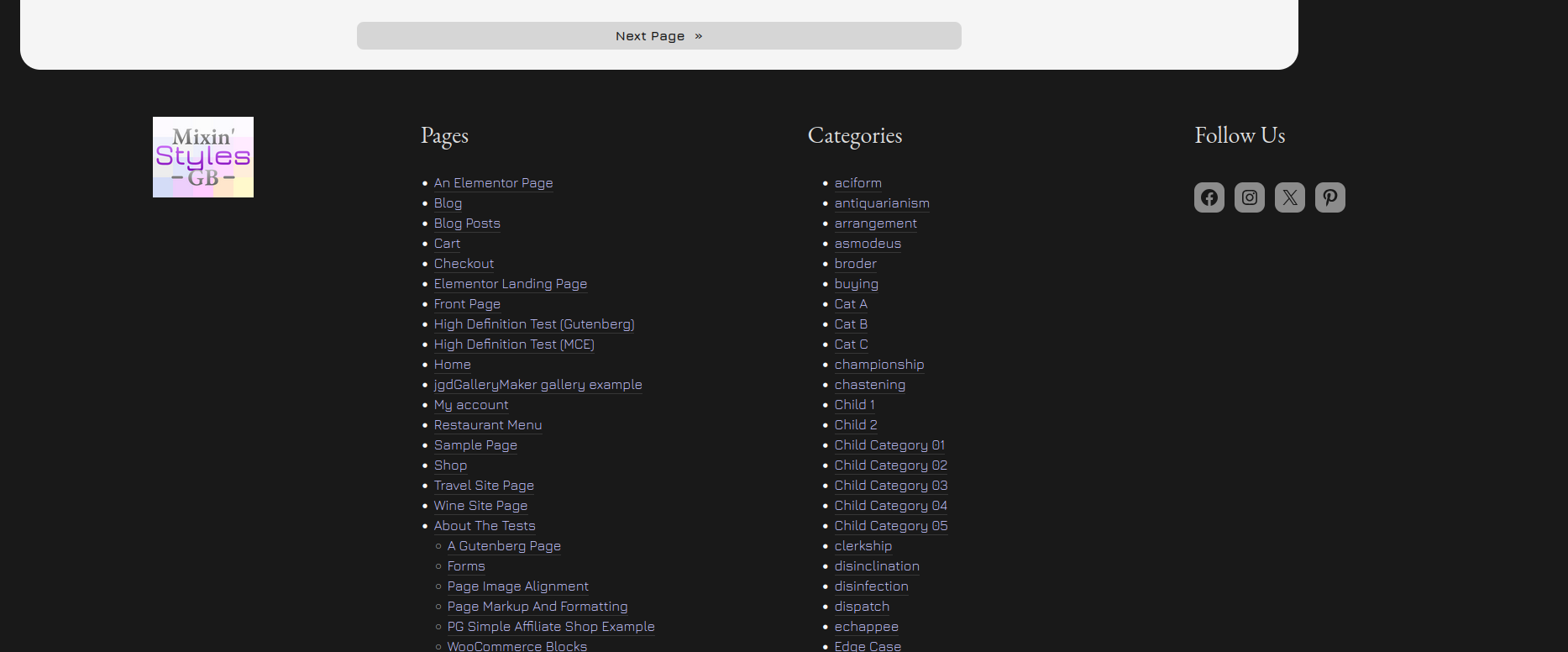
For this update, there is only one new footer pattern. This features four columns with the logo in the left one. This works well if you want your site to have only top level menus with more information in the footer.
Pages, Categories, Social Icons
Header- Sticky (Slide Down)
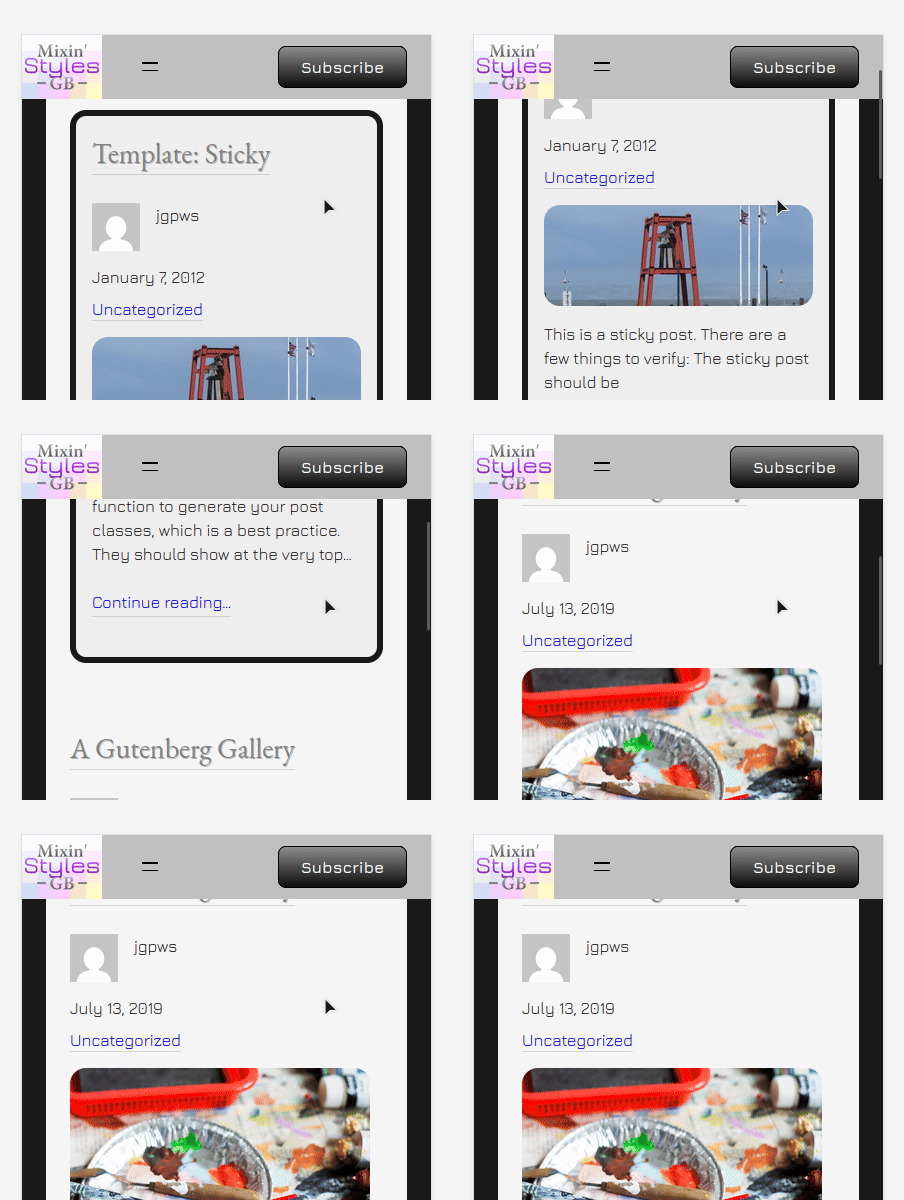
This pattern isn’t an actual header, but a Group block with a header template within. This special purpose pattern when coupled with a header template uses WordPress’s Sticky positioning to fix the header to the top of the website.
The Slide Down header adds some sliding animations to spice it up. Using this requires some set up. Let’s use it with the Thin Header style.
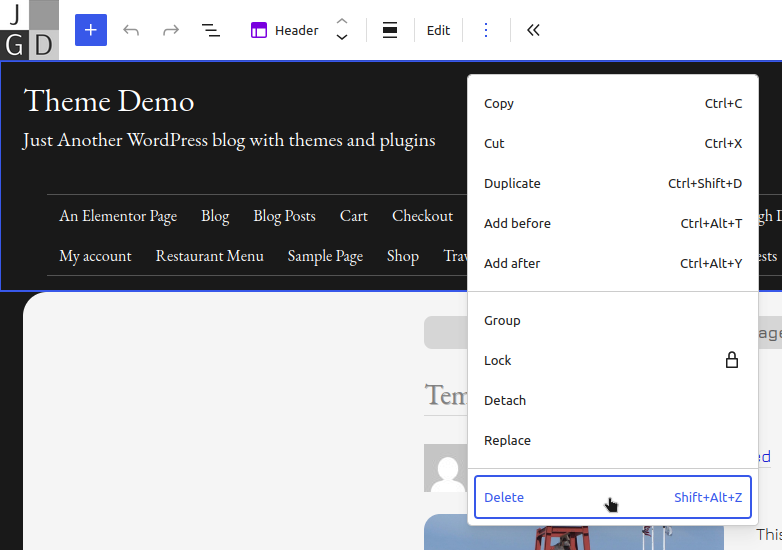
- First, you must delete the current header
- Go to the Block Inserter and click the Patterns tab
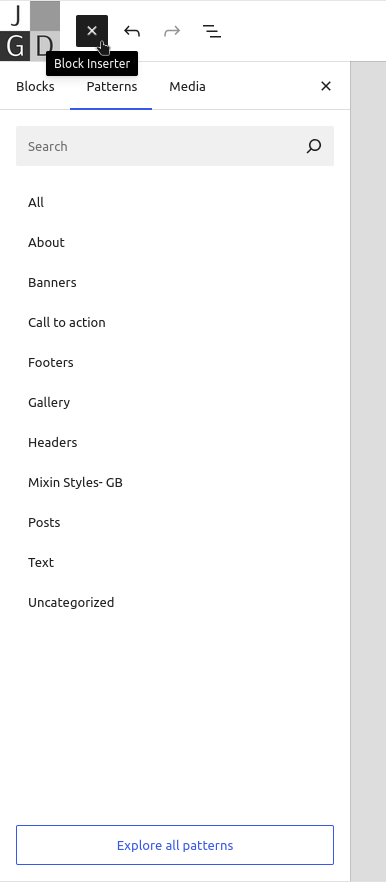
- Under Mixin’ Styles- GB, look for Header- Sticky (Slide Down) and select it
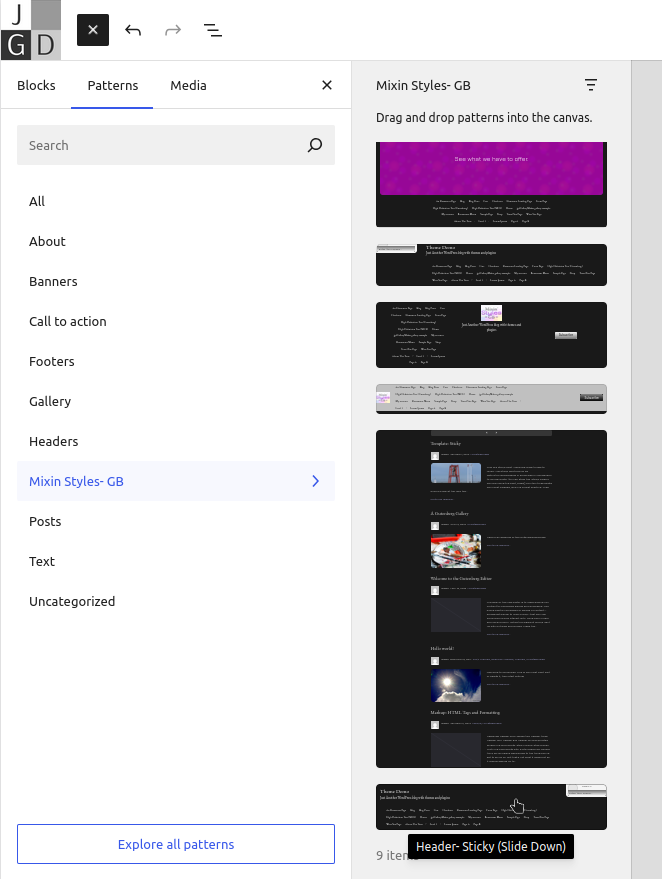
- This will automatically place the pattern below the content area, but we don’t want it there. Let’s use List View to move it into place. Drag the header in List View from beneath the Query Loop to beneath the Content, Sidebar columns
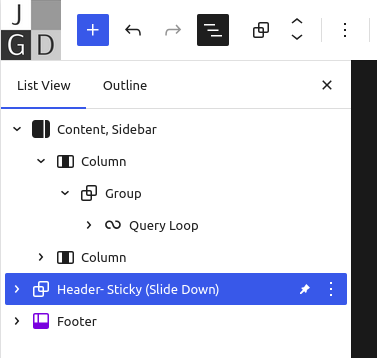
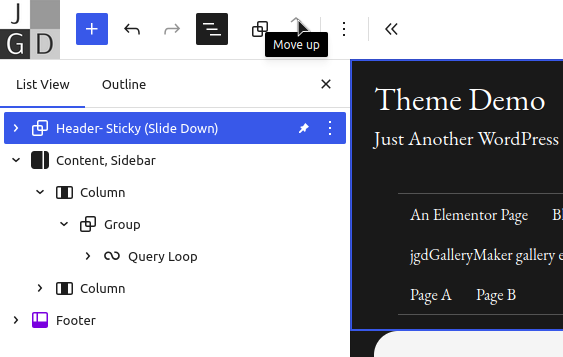
- Use the arrows to move the header to the top
- Within the Group block is the header template. Let’s change this to include the Thin Header pattern
Some screenshots are shown on desktop and mobile screens.
Conclusion
The goal with this new update to Mixin’ Styles- GB was to offer more features that blogs might want. I hope these might be usable
Thank you for reading and using this theme if you do.
Leave a Reply