
Mixin’ Styles- GB’s New “Card” Style

As part of ongoing new features and maintenance of Mixin’ Styles- GB, I rolled out a new major update.
If you were using this theme before, you may be thinking ‘What’s so major about it.’ The theme still looks the same.
It indeed does, but the difference is the underlying way it is presented. In the older versions of the theme, the cards that hold the theme’s content had hard coded CSS. In other words, you either couldn’t change the colors or it wasn’t very obvious that you could.
Block Variations
Before, the theme used a Block Style, which added a CSS class. From there, I styled the card from an external source. Now, all posts and pages are set in a Group block, using a Block Variation.
In the case of the new Card style, the Block Variation presets all of the associated colors and presents them in the Group block’s Color section. The difference here is that the colors can be changed at the click of a button.
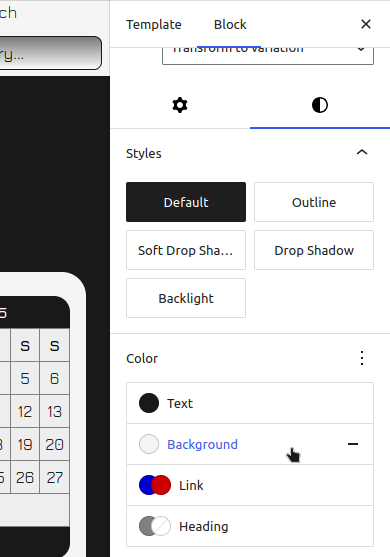
New “Card” Colors
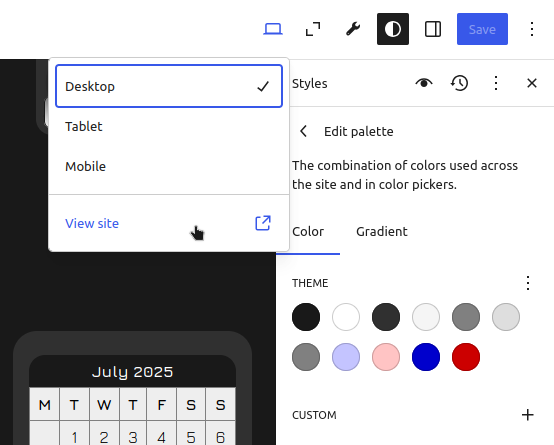
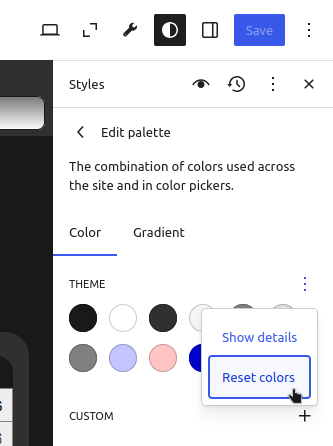
One other, even better new feature is the ability to change the background and foreground colors of all of the content cards in a few clicks. To get to this, you would click the Styles icon, then go to Colors, then Edit Palette, as shown in the screenshots below.
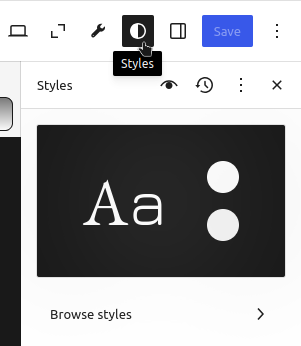
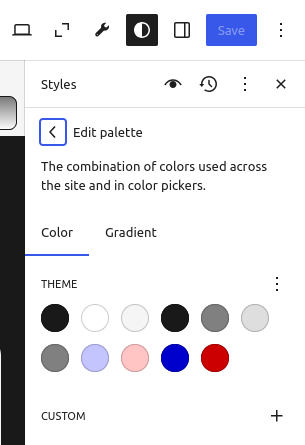
Applying New Card Colors
Let’s try this out. But first, in order to do so, you will need the latest version of Mixin’ Styles- GB from WordPress. You can download it from the .org site or the Themes section in the WordPress admin.
Following the instructions in the previous section, let’s change the color of the Card background and foreground to create a dark look.
The card background and foreground are the third and fourth colors, respectively. For the background, let’s use the hex color #303030, a very dark gray. For the foreground color, we will use #f5f5f5, a dim white. Save the new styles.
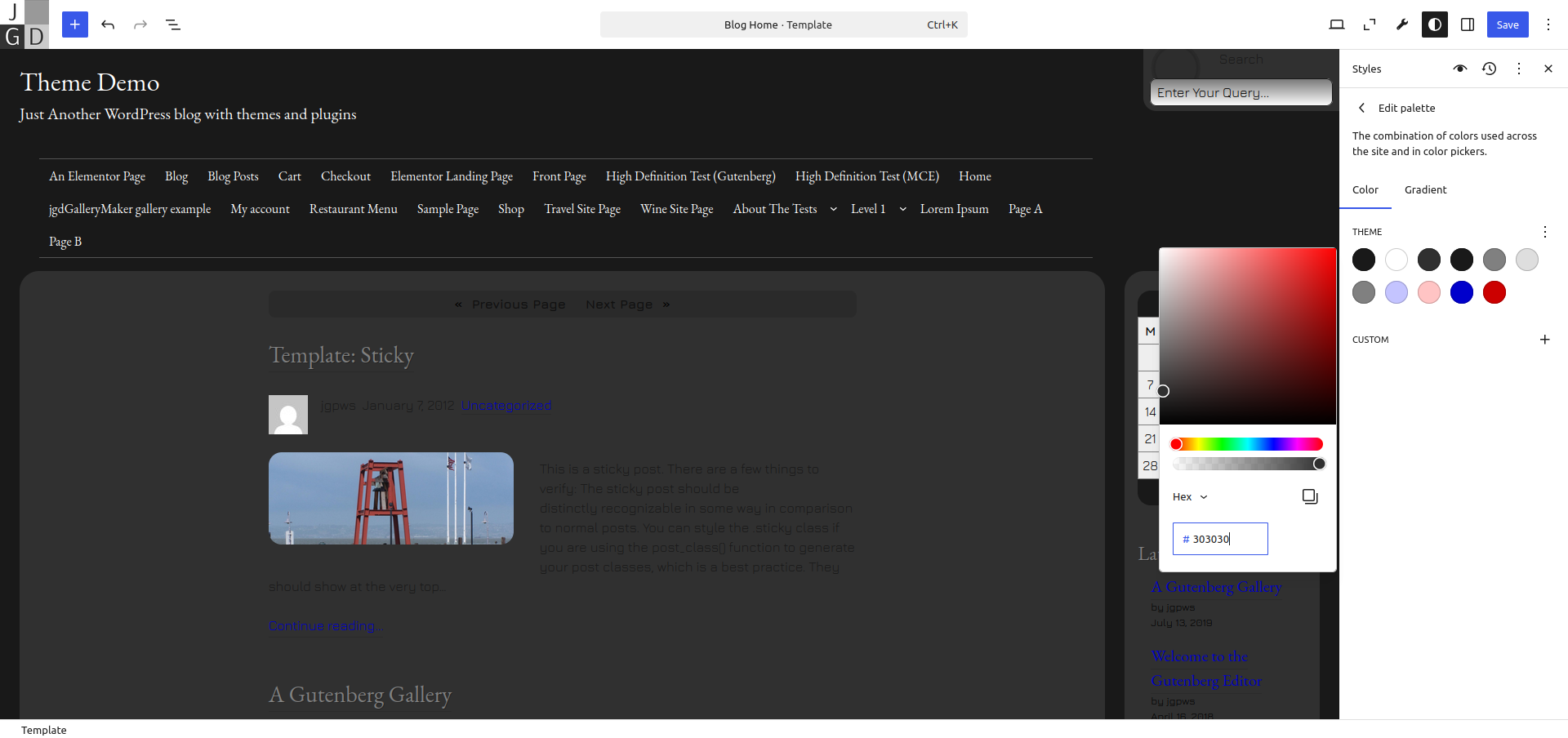
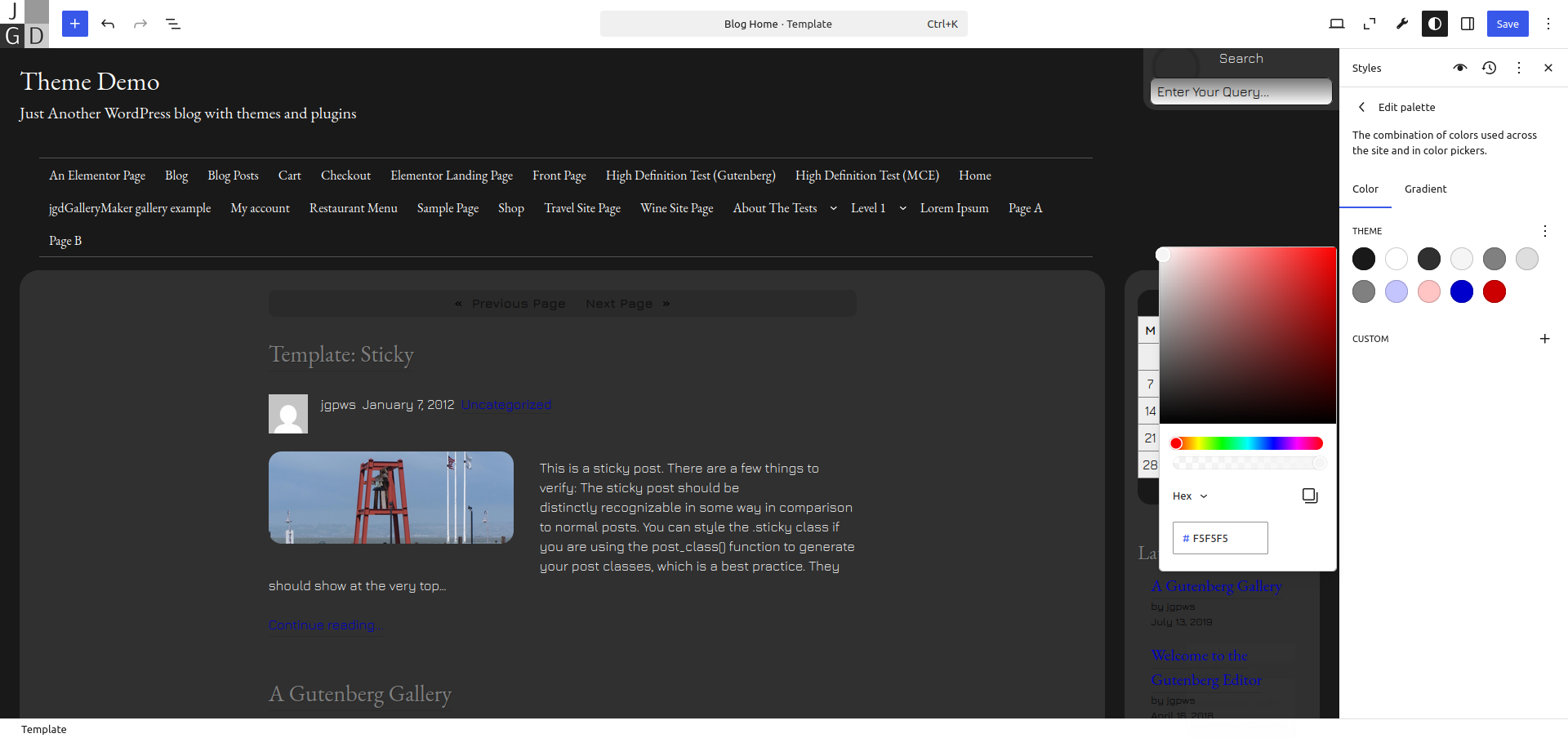
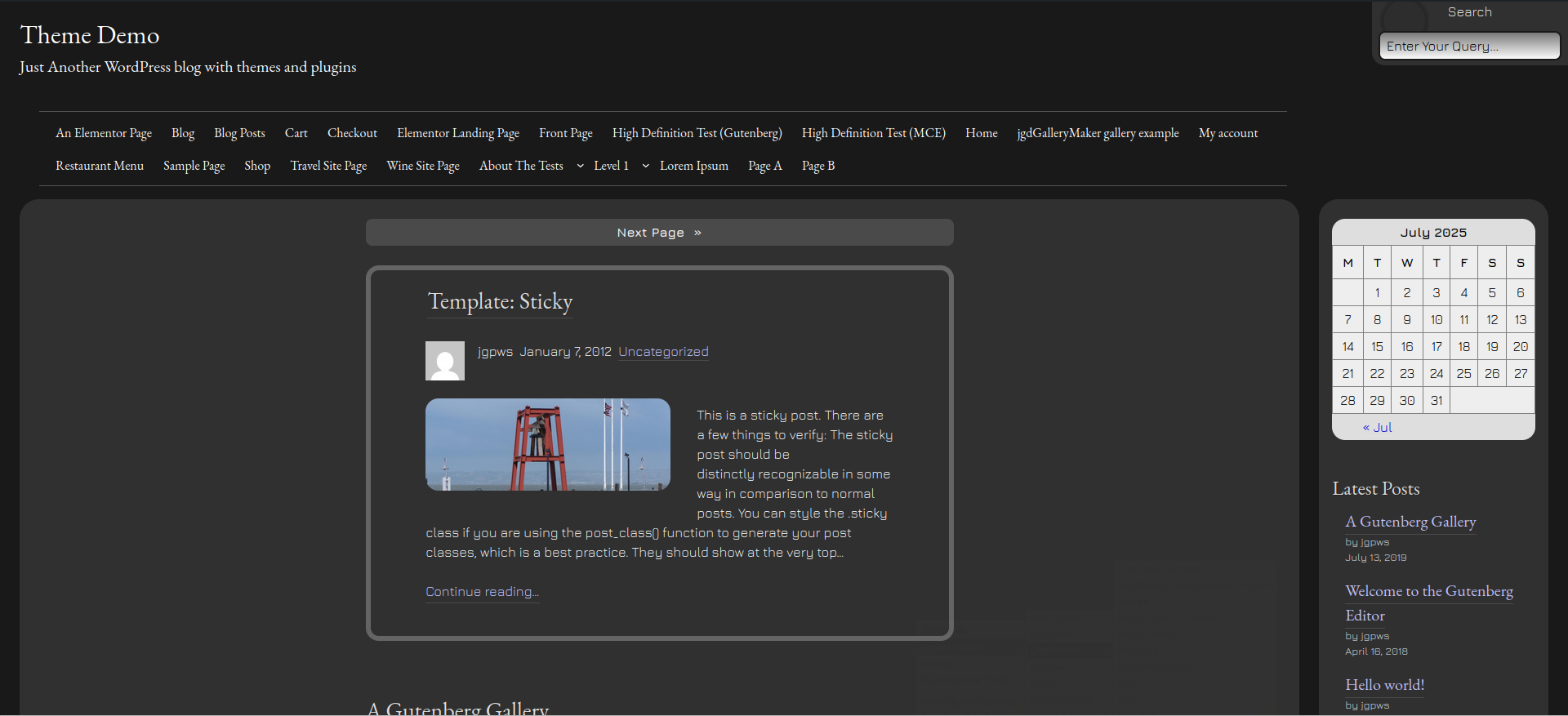
Let’s view the site on the front end. Did you notice the automatic change in color for the page links, next posts link and calendar? Mixin’ Styles- GB includes a script that changes the foreground card color depending on the contrast of the background.
Removing the Cards
Don’t want any “cards” around your content? There is also the No Card Styling block variation. For the template in question, select No Card Style- Content for the main content area, and No Card Style for the Sidebar Group.
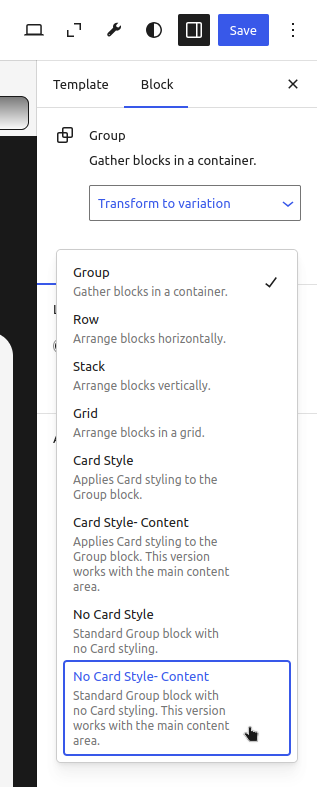
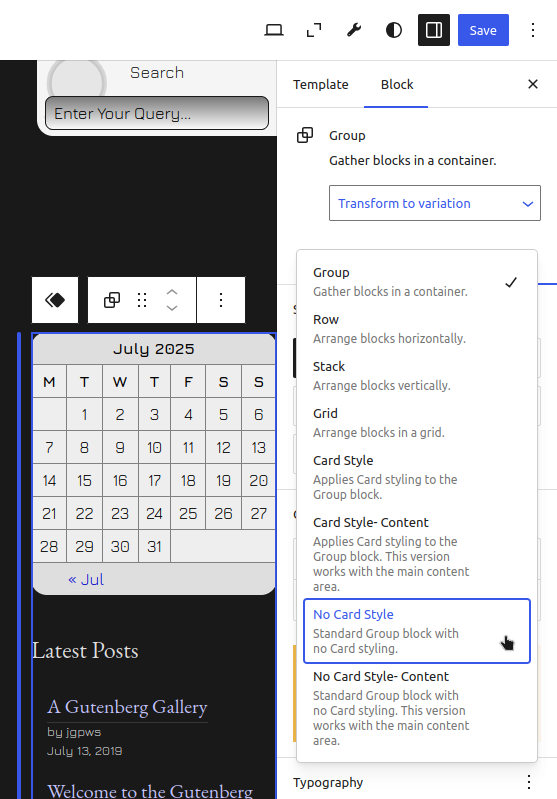
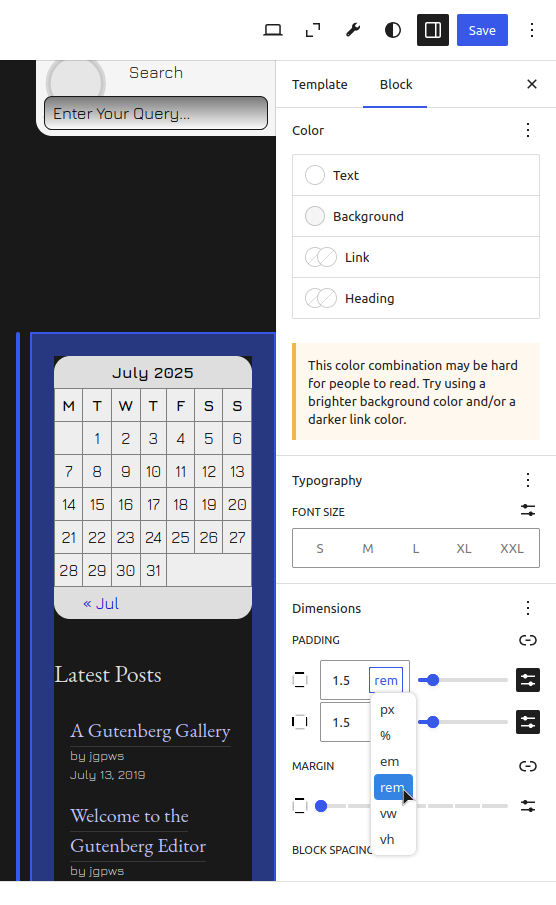
By default, the Sidebar comes with 1.5rem of padding on all four sides and the No Card style removes it. Let’s restore that. Under Dimensions in the Block tab, change the padding for both top, bottom and left, right to 1.5rem.
Using a Per Card Color Scheme
Next, we will create a new color scheme and then apply new colors only to the sidebar. First, we need to reset the theme to the defaults as shown below.
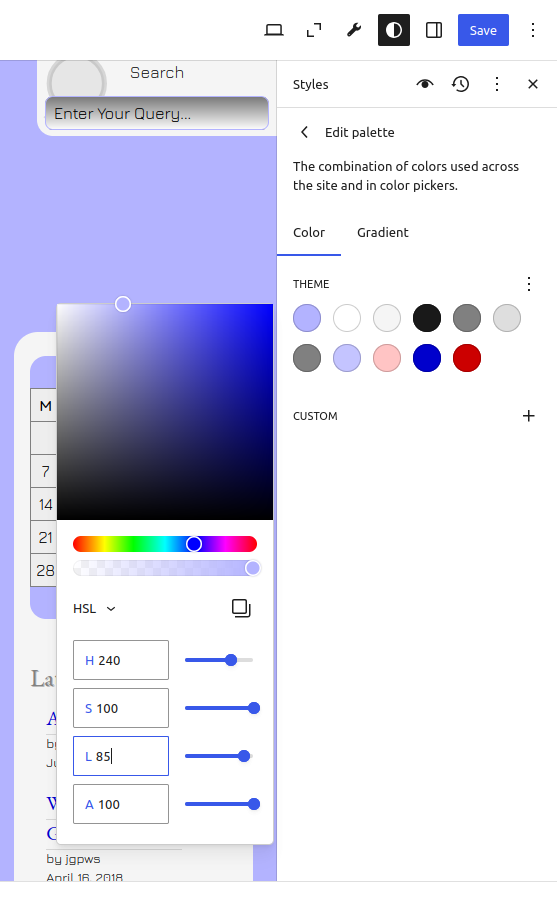
For this part, let’s use HSL colors to define the new color scheme, once again going to the Color palette.
For the Background color (first color swatch), choose HSL and enter the values 240, 100 and 85. Change the foreground color (second color swatch) to the hex color #191919. Click Save to commit the color changes.
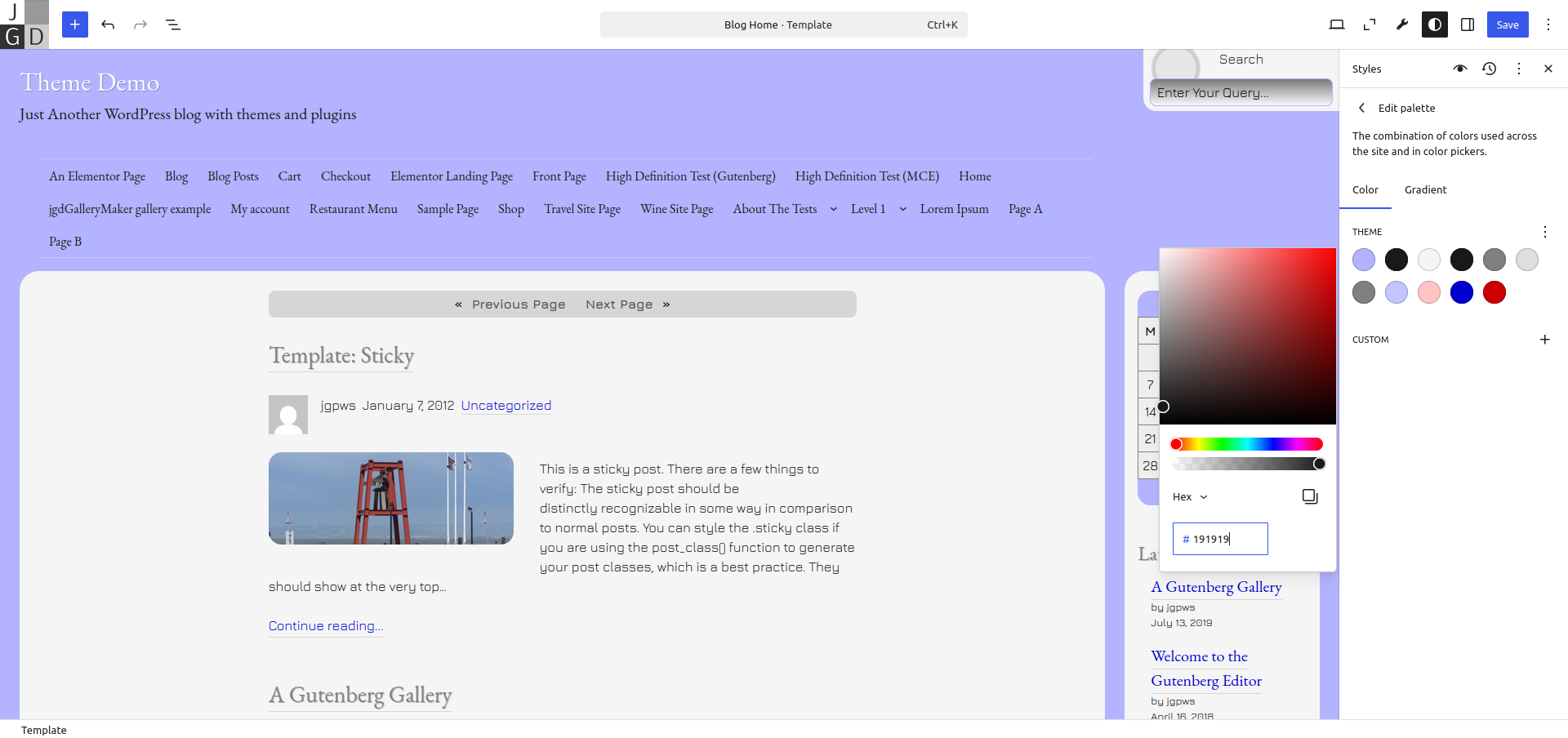
Next, let’s fix the link colors. In this case, we will make them the same as the alternative link colors. The link color, represented by the pale blue color will turn into solid blue– #0000CC. Then the hover color will change from pink to red– #CC0000.
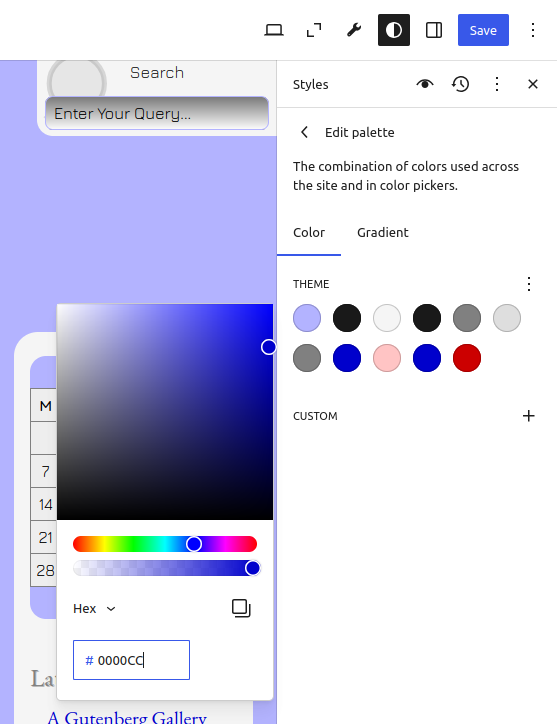
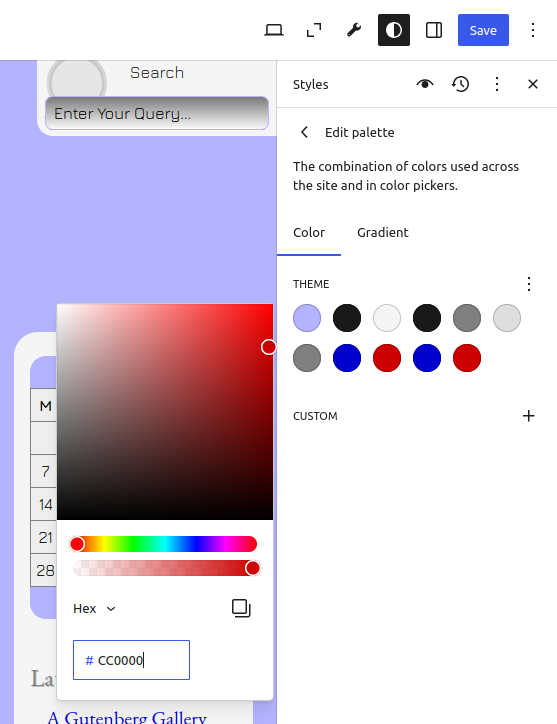
Now, we will change some colors in the Sidebar independent of the overall color scheme. Click the Sidebar, making sure the inner Group block is selected. This is where our Card styling is.
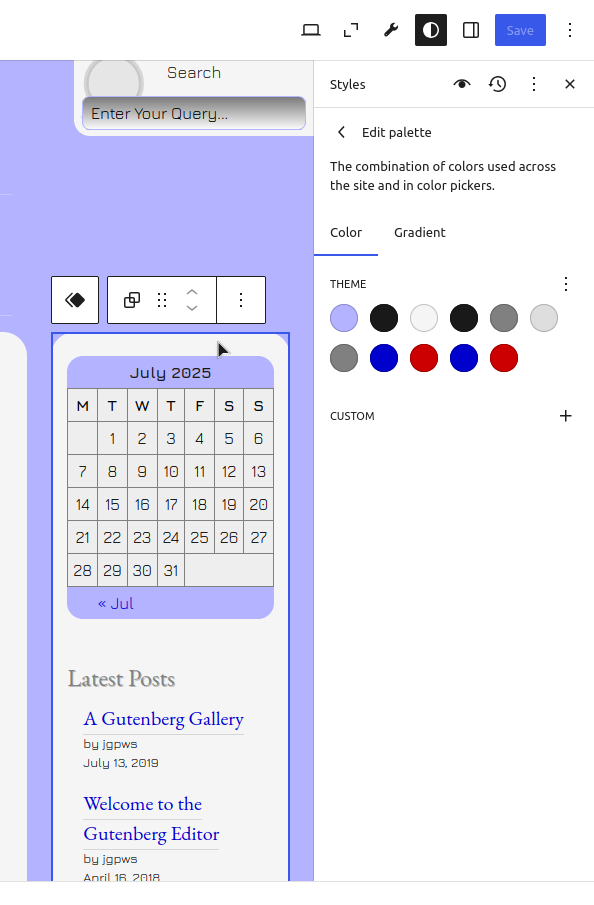
Under the Background color, change the default color to the HSL values of 240, 100 and 93.
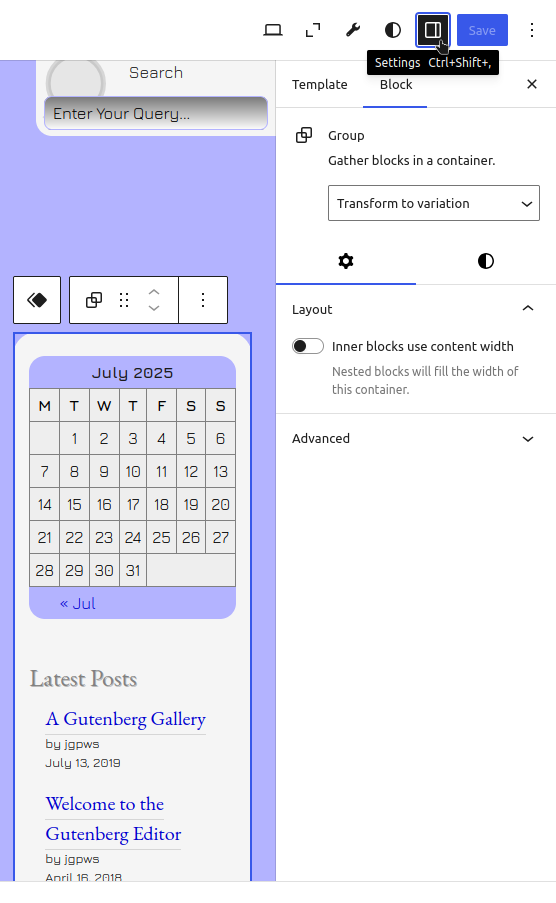
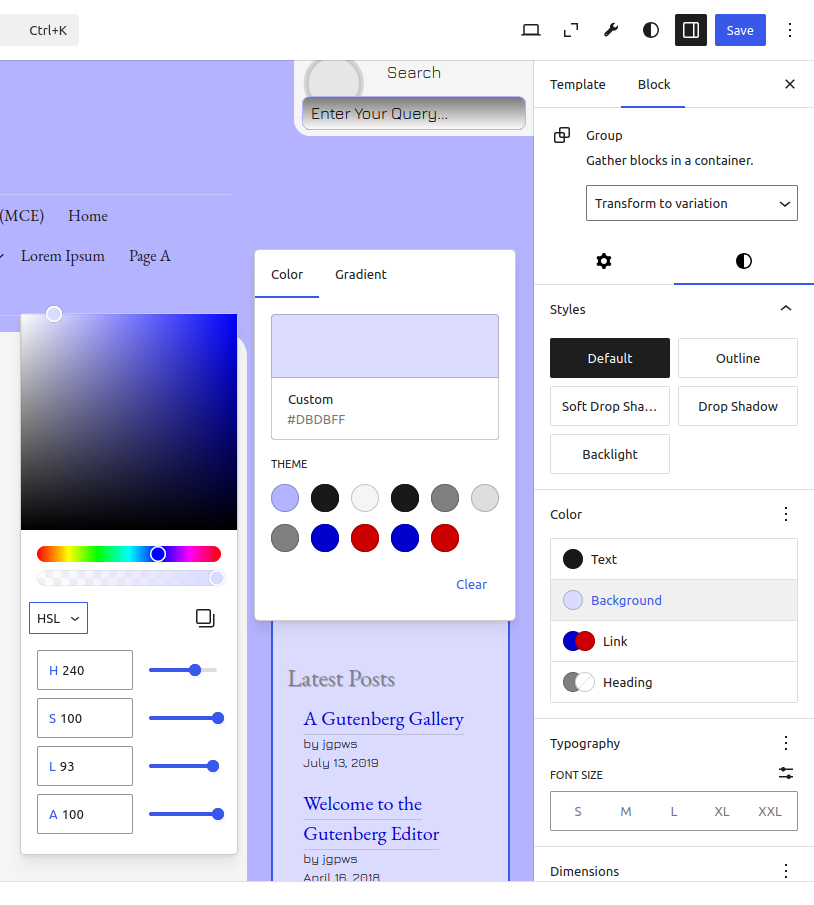
Finally, we will give the Link Hover colors a slightly darker color than the Link color. Using HSL, change the hover colors to 240, 100 and 20. Click Save to commit the changes.
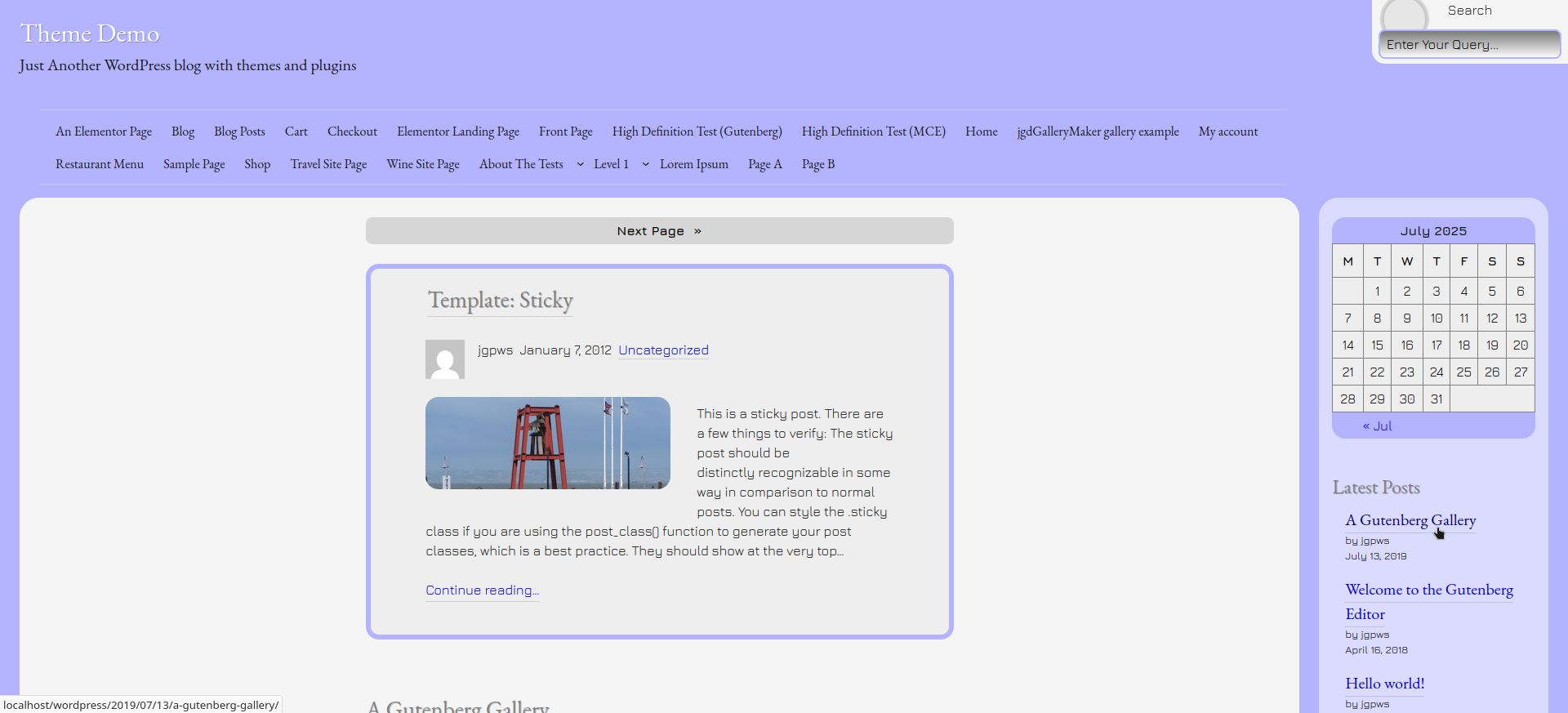
Check out how it looks live!
Conclusion
That pretty much wraps it up. The new way Mixin’ Styles- GB implements the card look makes it much more intuitive to use. Instead of with a Block Style, you can see at a glance what colors apply where, especially with the addition of named card foreground and background colors.
If you are using this theme, maybe this will give ideas to create some of your own color schemes.
Featured image by OpenIcons from Pixabay.
Leave a Reply