Exploring the Block Editor’s Drop Shadows
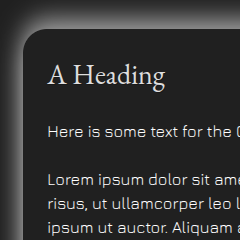
Did you know that since WordPress 6.5 that you can add drop shadows to several blocks? A drop shadow can be used with the Button, Image, Column and Columns blocks. But, you can also use it with other blocks, which we will use for the examples here.
To show the defaults for WordPress, we will use my theme Mixin’ Styles- GB, as it also has its own shadow presets for the Group block. Let’s check them out!
* In the newest version of Mixin’ Styles- GB (1.5 as of this writing), the shadow styles have now been moved to the Post Template block found within the Query Loop.
Mixin’ Styles- GB’s Built In Drop Shadows
Keep in mind that for this theme, the colors in the Page and Post editors don’t match the front end when the Card style is applied, so it will look differently depending on the shadow.
Mixin’ Styles- GB version 1.5 now matches the front end styling. In the Page or Post block editor, choose Show Template under the View button in the top panel.
Since some shadows look better against a dark background, I’ll show them as such.
Outline
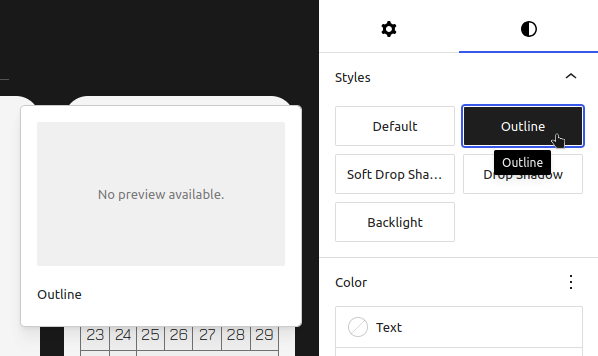
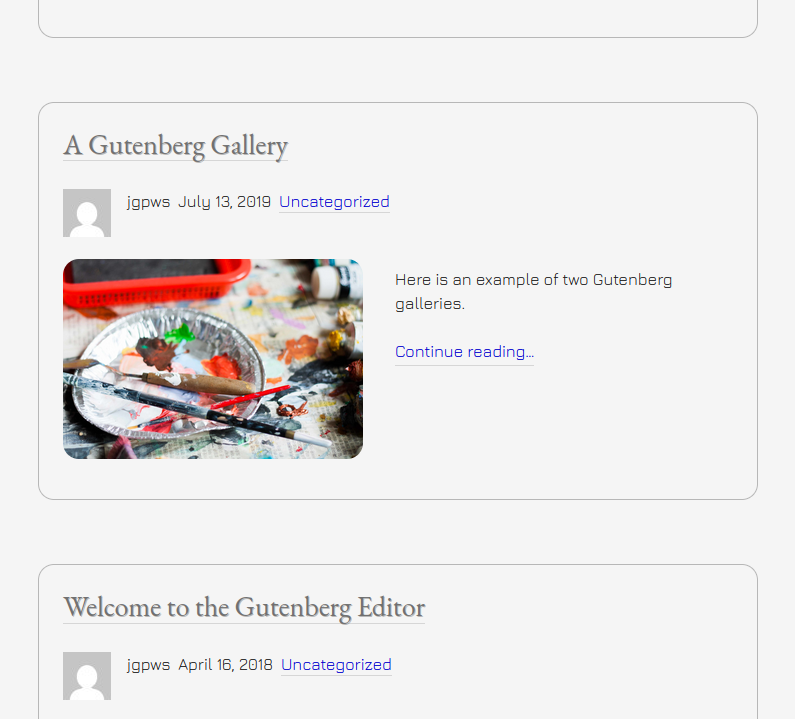
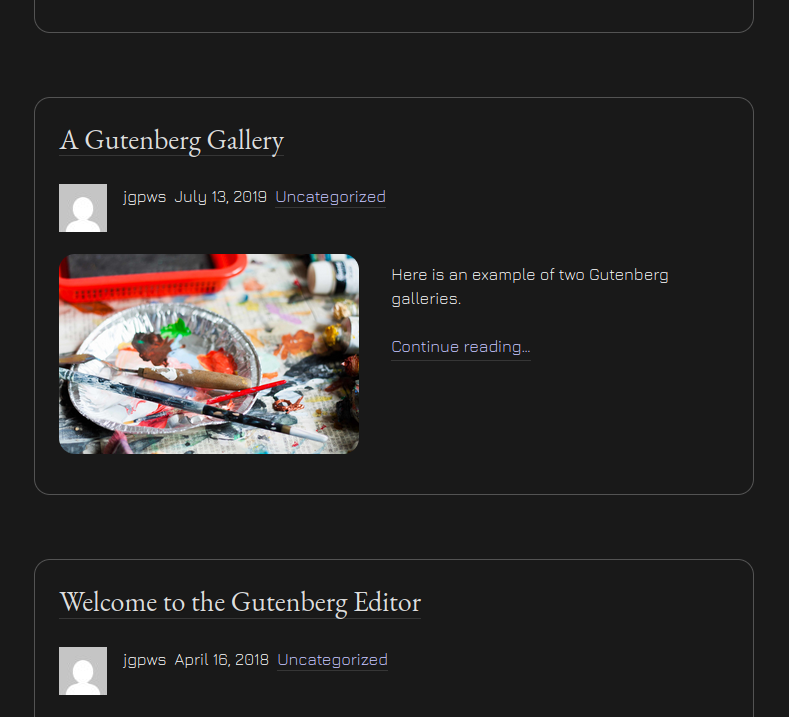
The first styling isn’t a shadow at all, but might as well be included here. It is the Outline style, which I will show against a light and dark background.
Outline- Light Background:
Outline- Dark Background:
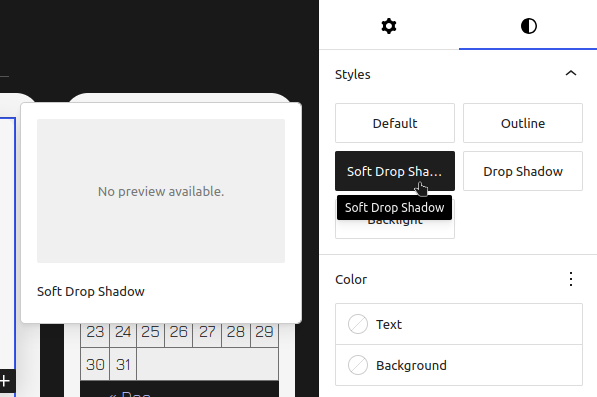
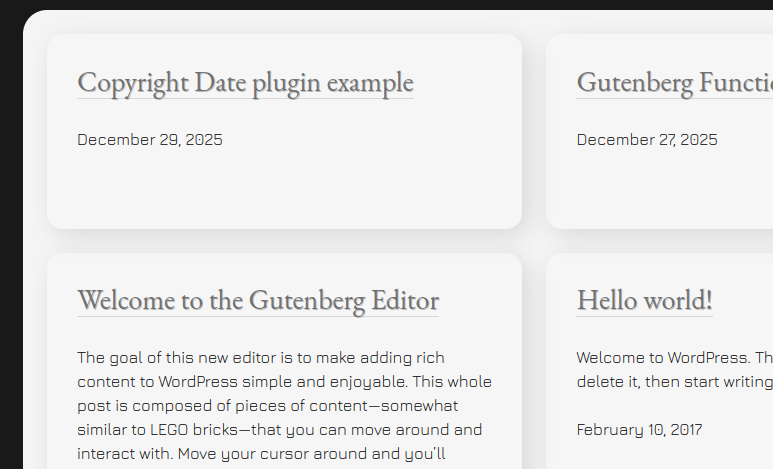
Soft Drop Shadow
This style looks best against a light background only.
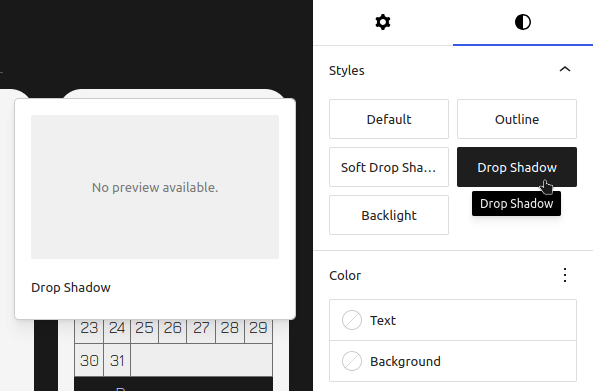
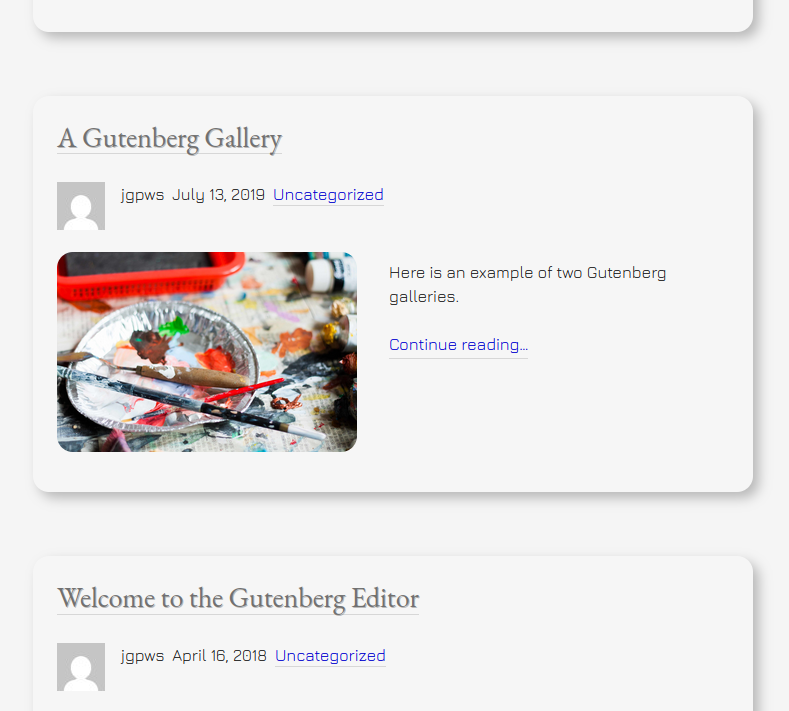
Drop Shadow
The regular drop shadow has a little more contrast and can work with a dark background, however, it still looks best with a light background.
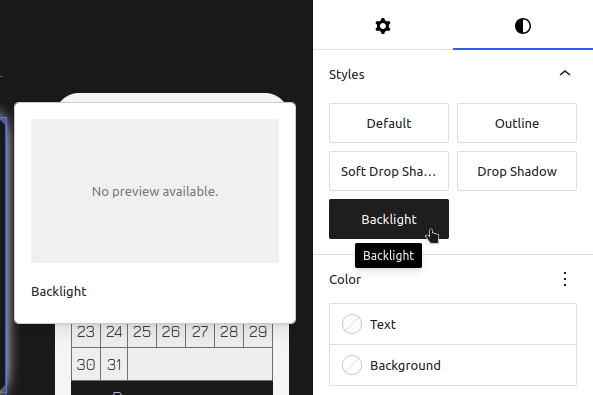
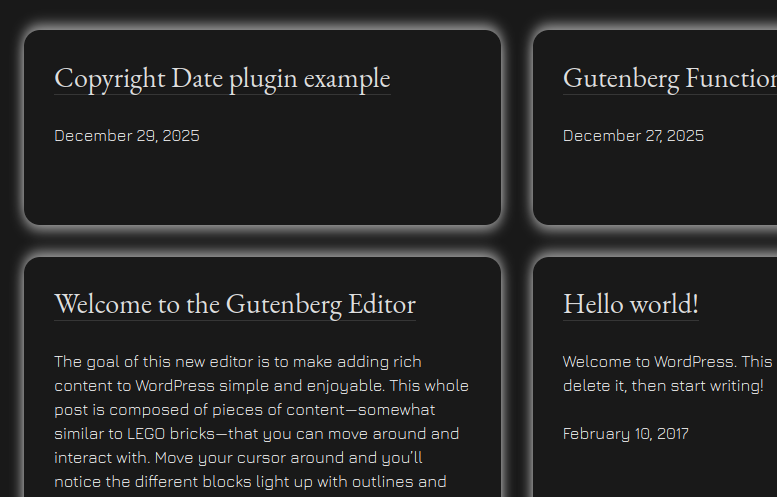
Backlight
The backlight style, however, is designed for a dark background and will add some energy to the block it’s applied to!
By the way, in order to get dark backgrounds behind the theme’s “cards”, check out my last article Mixin’ Styles- GB’s New Card Style.
The above styles can now also be applied to the Pull Quote block too!
The Block Editor’s Built In Drop Shadows
One good point about the default shadows provided with WordPress is that you can use them on many more blocks than the ones above. In this case, I will show them behind the Group block.
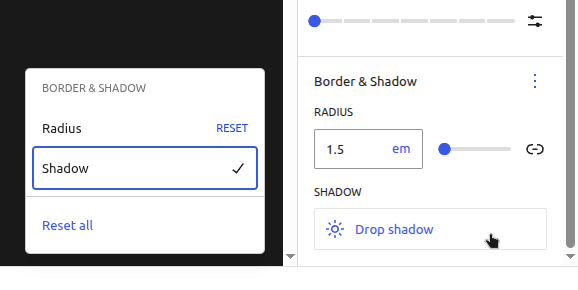
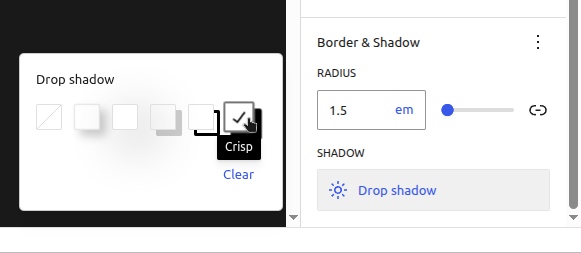
In the Block Editor, you can enable shadows by clicking the Border & Shadow Options button.
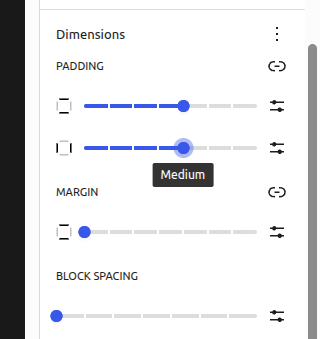
Padding is included with the theme’s shadow styles, but must be added for WordPress’s built in shadows. Let’s add a medium amount of padding around the Group example, as shown below:
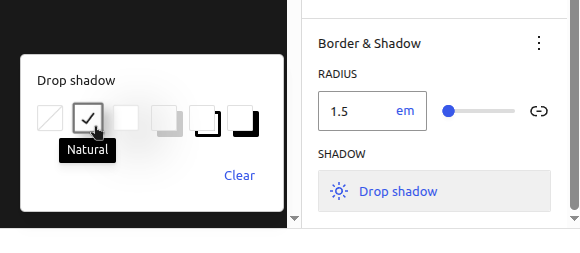
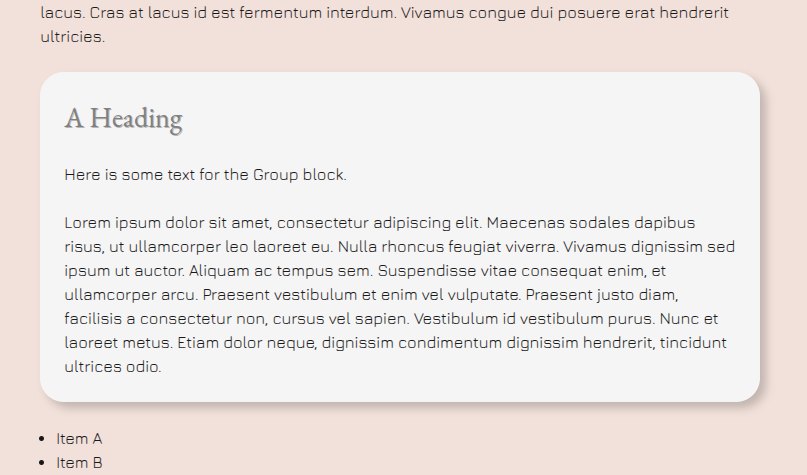
Natural
This one provides a subtle shadow that still stands out enough. Although, this looks good when the background color is slightly darker than the Group’s background.
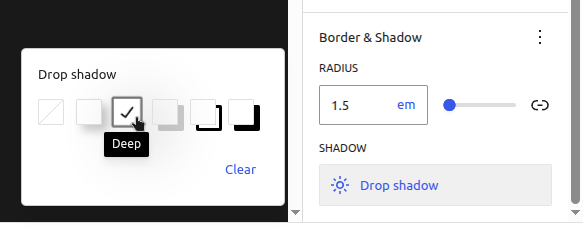
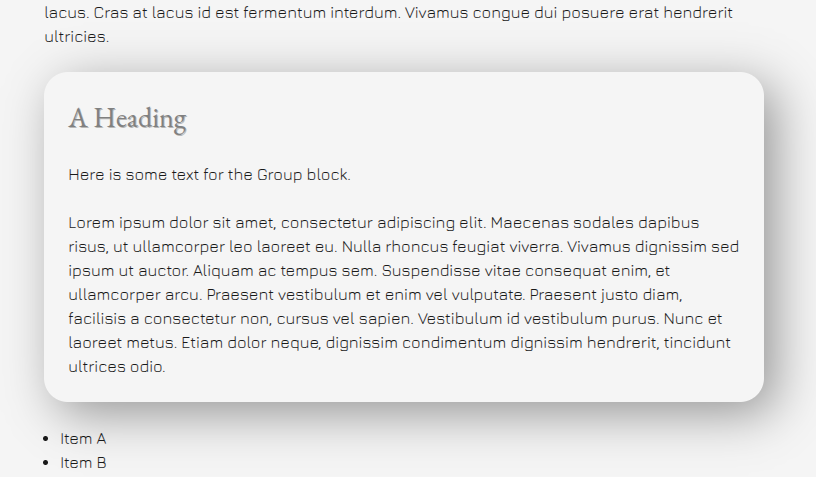
Deep
As stated by the title, this shadow offers more depth.
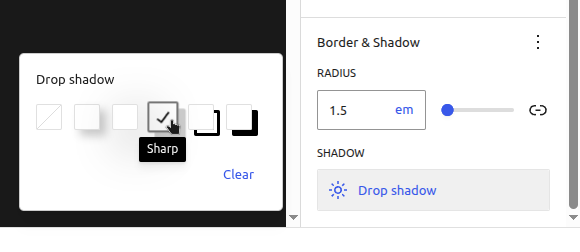
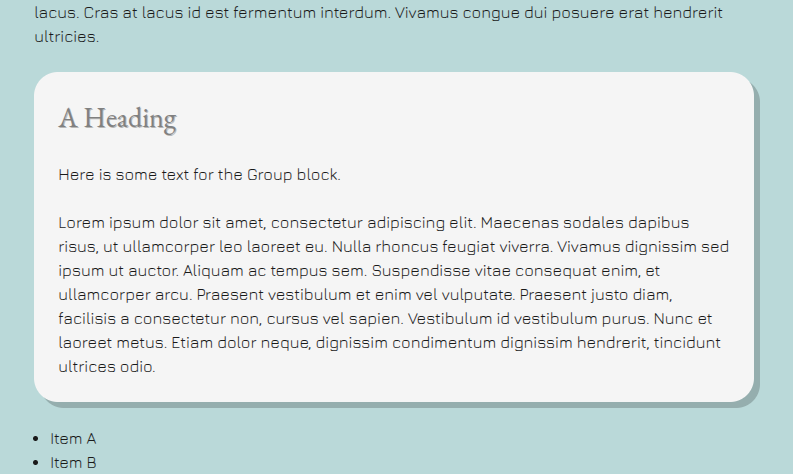
Sharp
This shadow style has a hard edge that also would work well for buttons or linked images.
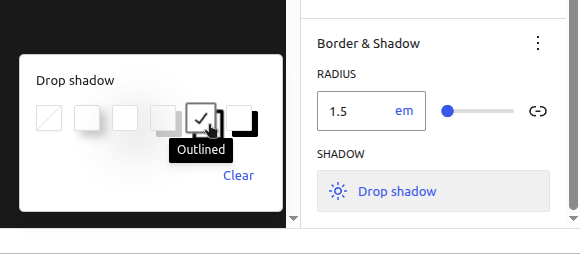
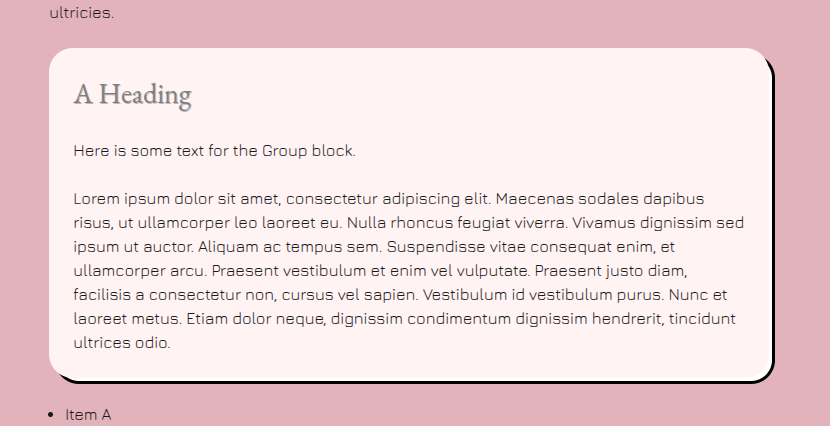
Outlined
The outlined style draws an outline around two sides of the block, giving a modern flair. This would work good as a button style, too.
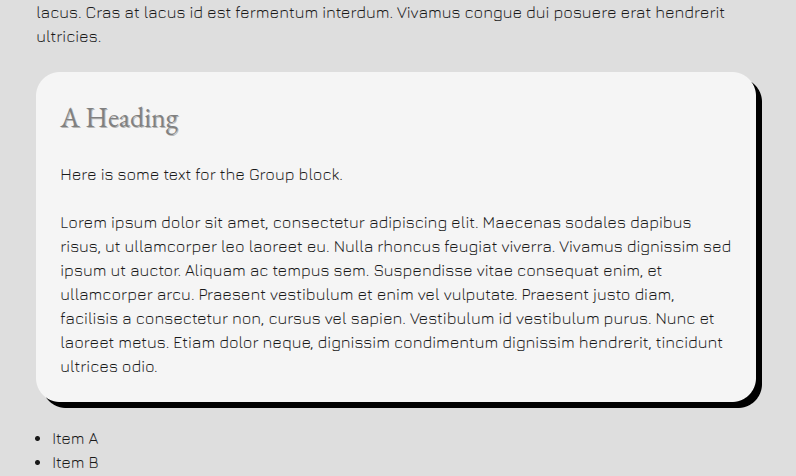
Crisp
The Crisp shadow style would be right at home with comic book style site. This would work with some other fonts than the Mixin’ Styles- GB defaults.
So, there it is! WordPress’s shadows are another way to add some pizzazz to your website and more importantly, call attention to desired areas.
Are you using these on your sites?
Leave a Reply