
How to Convert a WordPress Post to a Page (or Vice Versa)

As part of my ongoing and gradual transformation of this blog site, I noticed some posts should be pages instead. Particularly, theme home pages were posts but should be pages.
Based on the times we are now in, I asked Google AI what is the best strategy for this task. Below, I will describe how to convert post into pages– or vice versa– with three plugins that the AI recommended.
Setup
We will leave no mystery around the plugins, as we will need to get these first. We’ll need Post Type Switcher, Better Search Replace and Redirection. The screenshots below show the typical WordPress admin install.
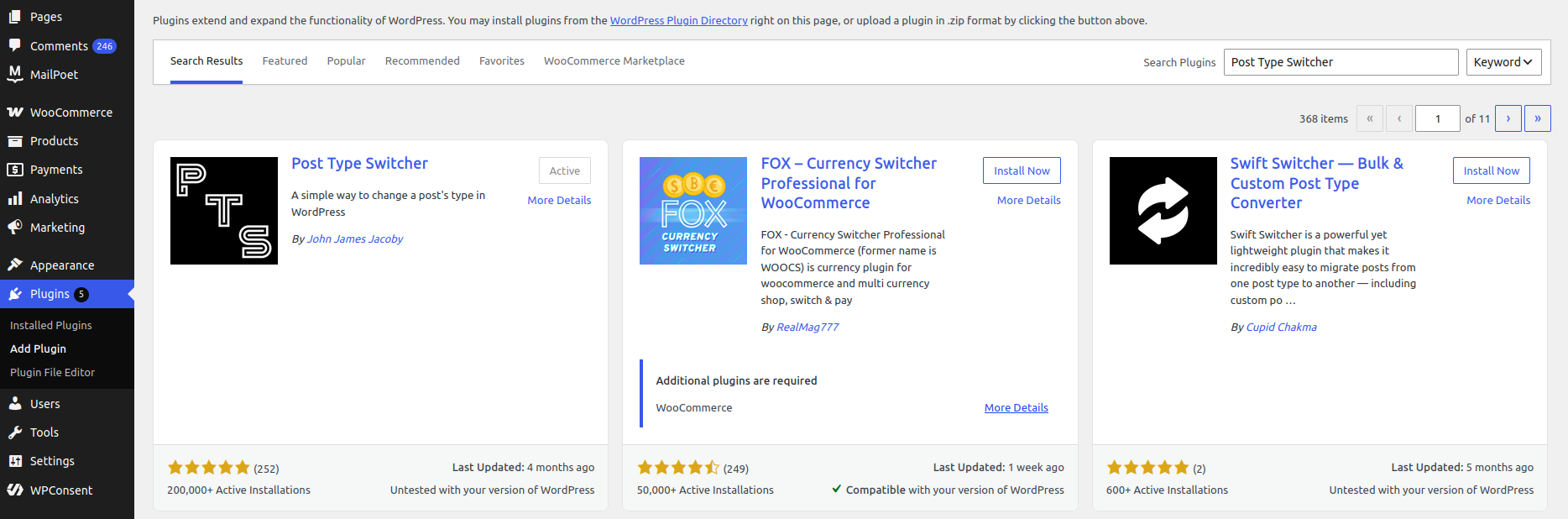
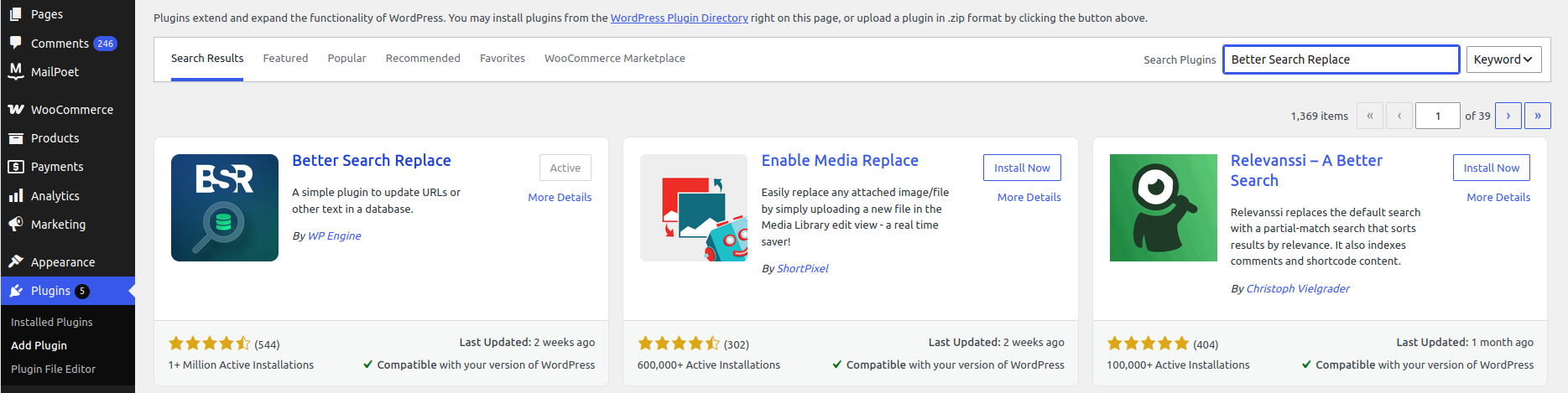
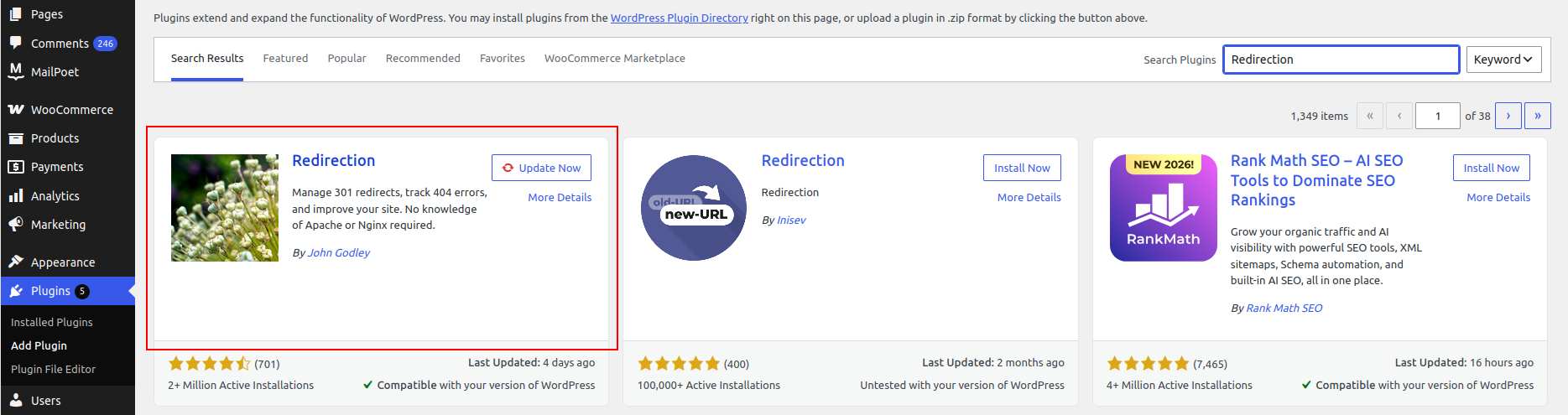
The first plugin we can use for conversion is the most important, as this does the main part. Post Type Switcher adds a button drop-down to the post editor sidebar that does just as advertised– changes the post type.
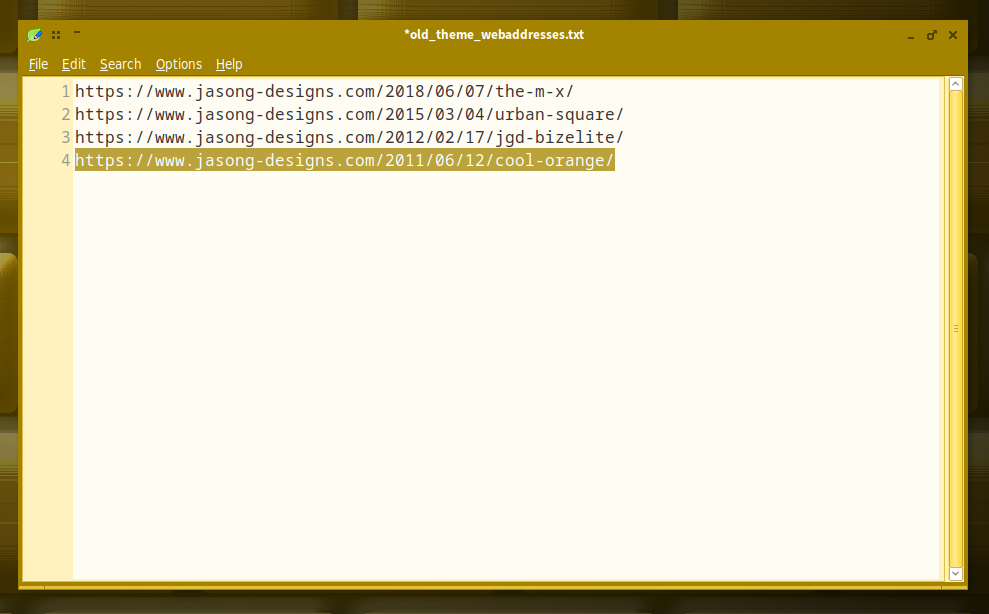
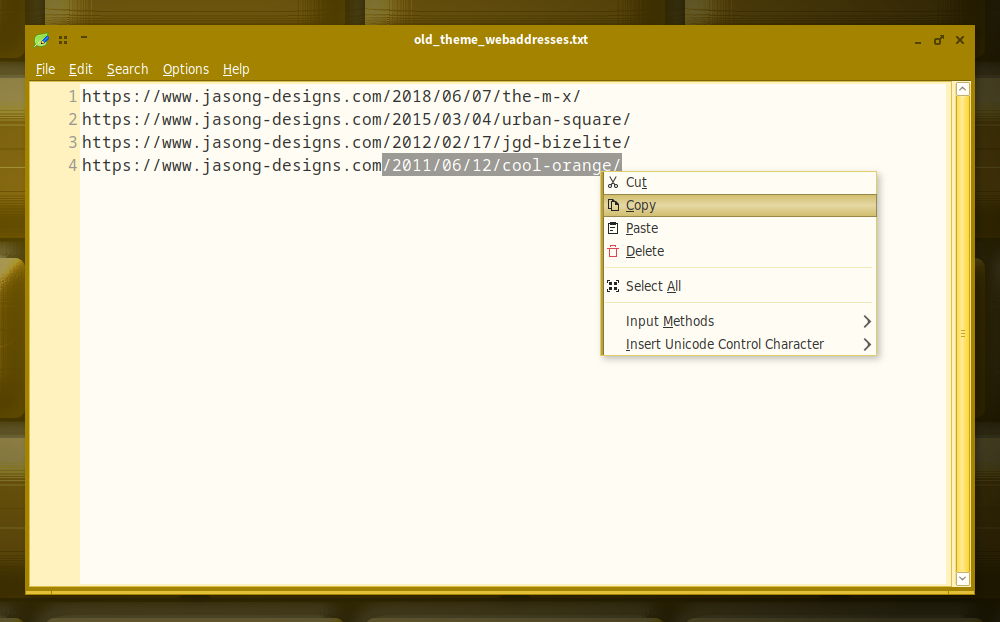
In my case, I changed the post to a page. If you are doing the opposite, changing a page to a post, it is a good idea to copy the new post address (which will be generated by Post Type Switcher) into a separate file, as you will need it later.
For posts, copy the old address, as posts usually have dates in the URL and are harder to remember.
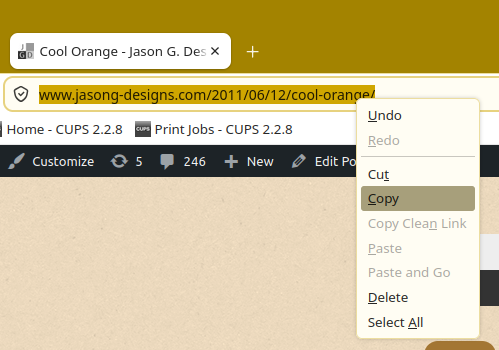
Then paste into a backup file.
Post Type Switcher
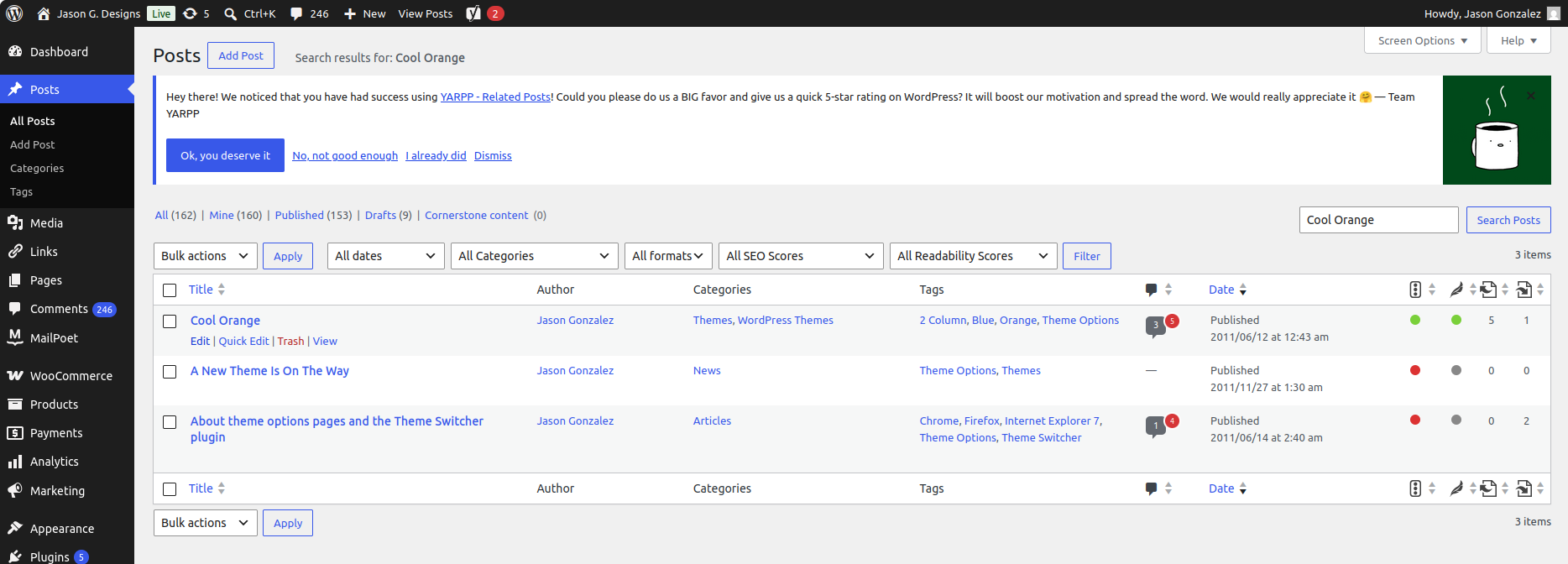
To use Post Type Switcher, navigate to the post or page that you want to change. If necessary, you can search for it within the Posts/Pages screen.
For a Post, in the post editor sidebar under Post Type, change it from Post to Page; click OK and save the new Page.
In the below example, I’m using the former post for Cool Orange, a WordPress theme.
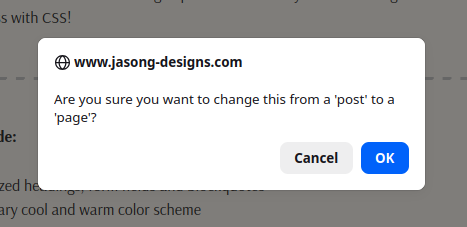
After clicking to convert, it will prompt to ask are your sure. Click OK.
Better Search Replace
Better Search Replace searches your database for one supplied term and replaces it with another. In our case, we will be searching for all link references to our old post and replacing them with our new page URL.
Needless to say this is a potentially dangerous step and the most risky plugin of the three. Make sure there are no mistyping or misspellings, as these can reverberate throughout your whole website!
Of course, to fix, you can just run it again with the correct information. Still be cautious here.
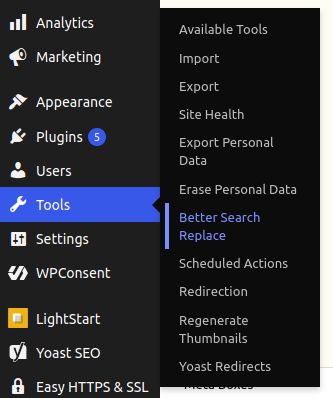
So next, we can navigate to the Better Search Replace main screen. It will be found under the Tools sidebar menu item.
In the Search for metabox is where we will enter our old post address. This is also where the backup comes in handy. For page-to-post the page address goes here.
Then, we enter the new address from the Post Type Switcher change into the Replace with box. Usually, it removes the date information from the URL. In the Select tables box below there, select wp_postmeta and wp_posts, which refer to all posts and pages.
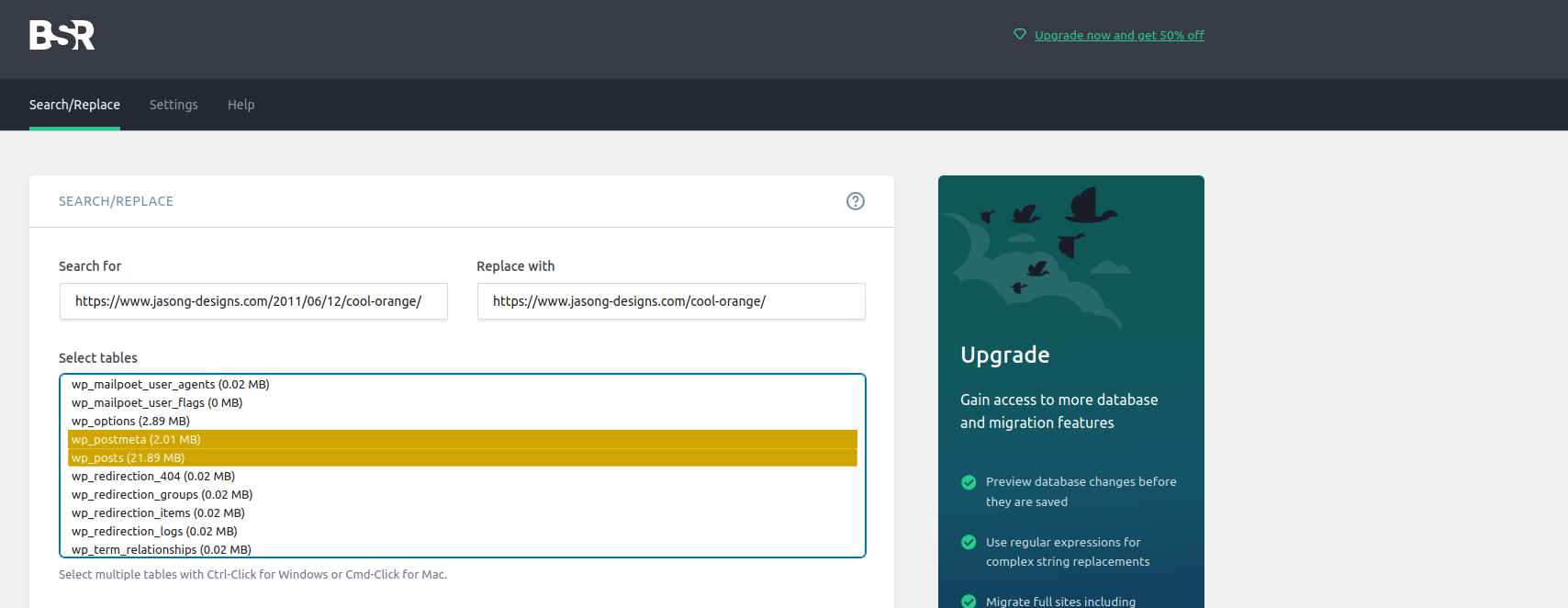
Leave Run as dry run checked, as it is a stopgap measure to check how many records are being replaced.
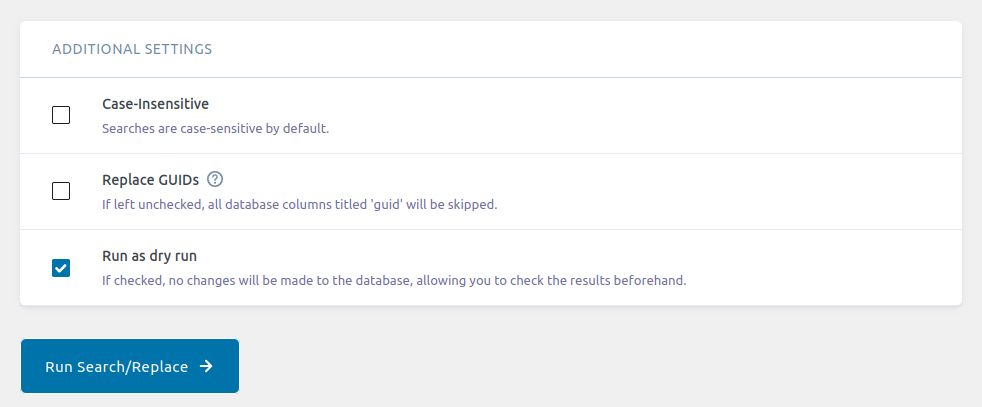
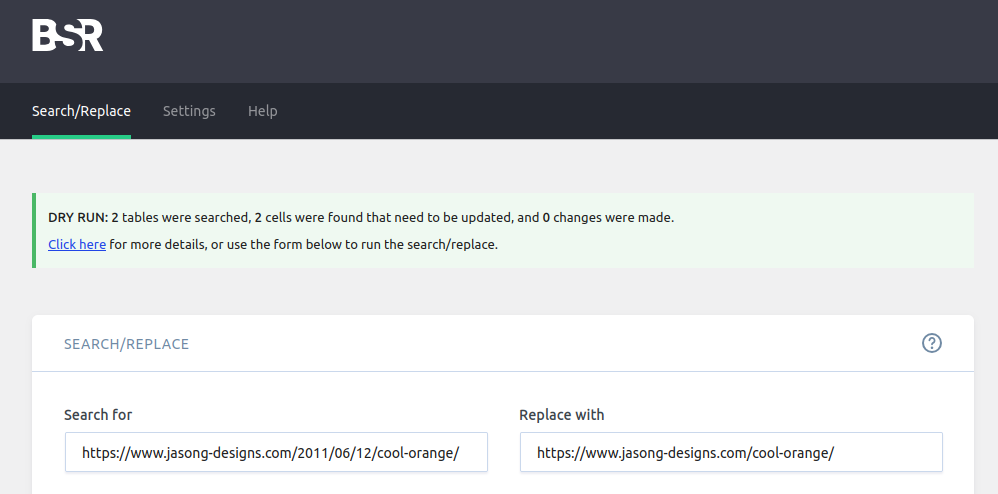
Uncheck and re-run to complete the actual replacement. To see exactly what is being replaced, they do have a Pro version you can upgrade to.
Redirection
The final plugin for this purpose is Redirection. So, now we have our posts changed to pages (or the other way around) and we have all of our internal links pointing to the new post type. However, search engines like Google are unaware that we changed our links. In addition, web pages outside of our website are still pointing to the old address.
This is where Redirection comes in to set up simple redirects.
Under Tools again, select Redirection.
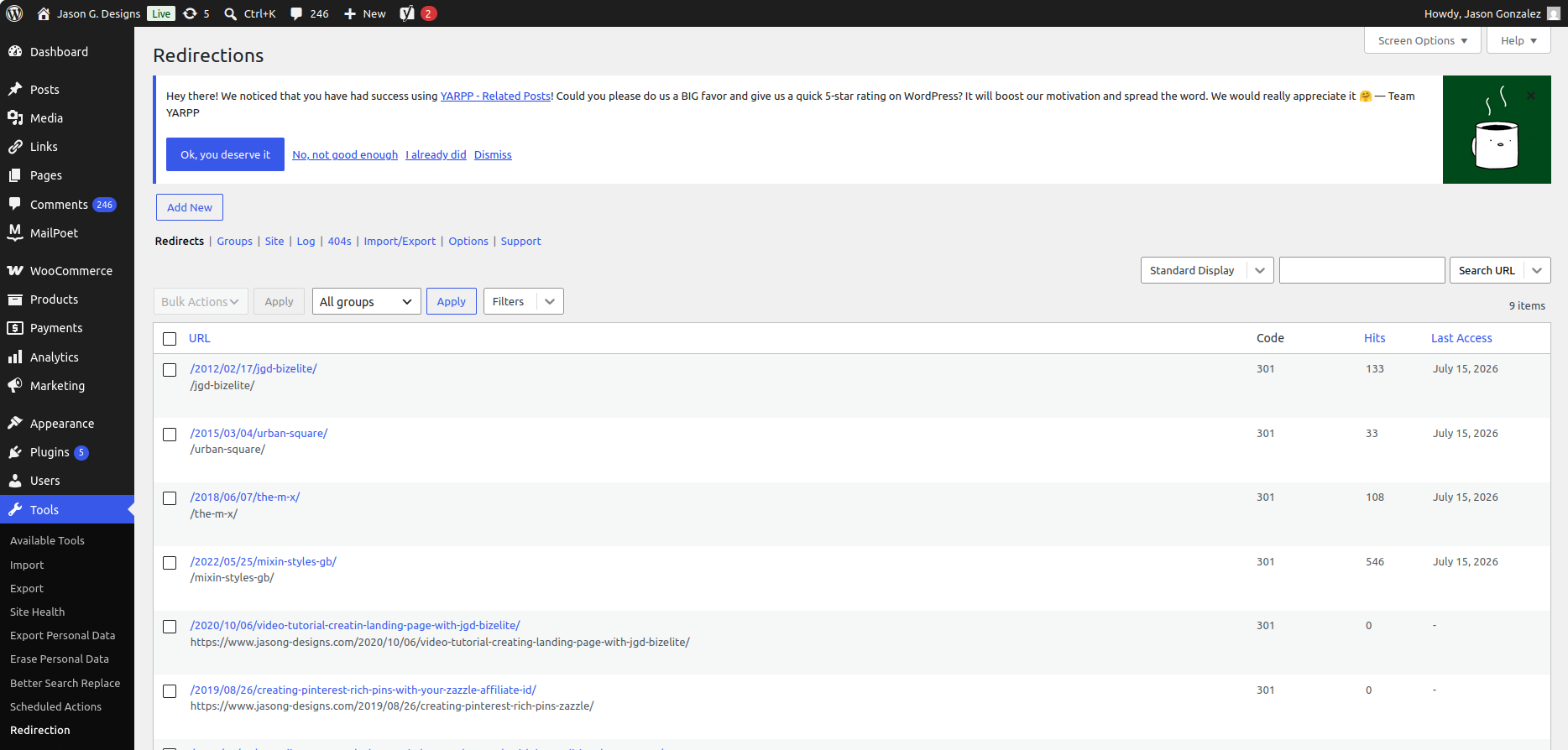
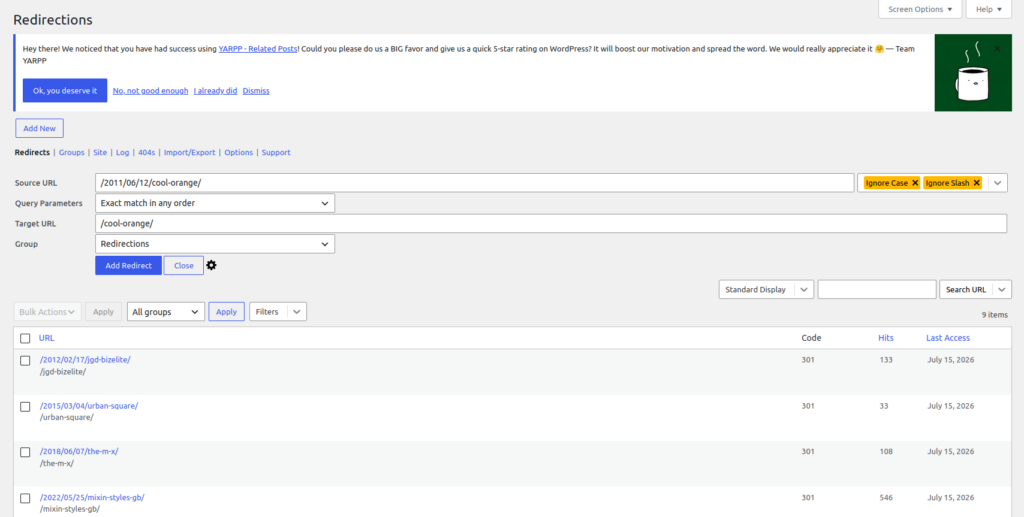
To add a new redirection, simply click Add New. But first, we need to copy the relative URL from the original post. For a post to page conversion, we would paste the URL to the Source URL box. Then, we would put the new page address in the Target URL box.
For page to post, you would switch the two. The screenshots below show the process.
Clean Up
One thing you can clean up in a post-to-page conversion is to remove the Read More block, if it exists. It is no longer needed on Pages.
Also, for my new pages, I decided to Group some similar items together.
After using these three plugins, it will seem like the converted Posts were always Pages to begin with (or vice-versa). Would you, my readers, use this method for such a task, or something else?
Thanks for reading.
Leave a Reply