
Mixin’ Styles- GB
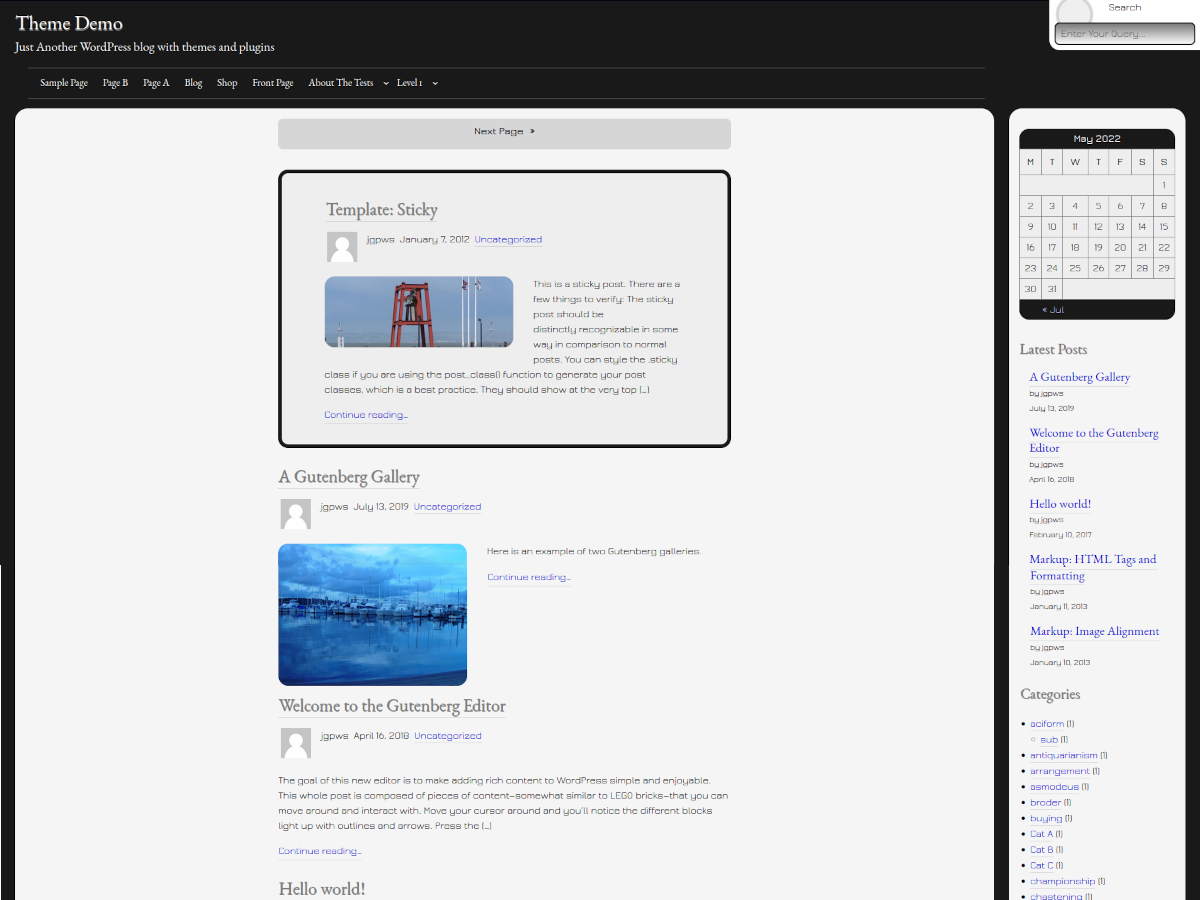
Mixin’ Styles- GB is a WordPress full site editing theme designed for blogs.
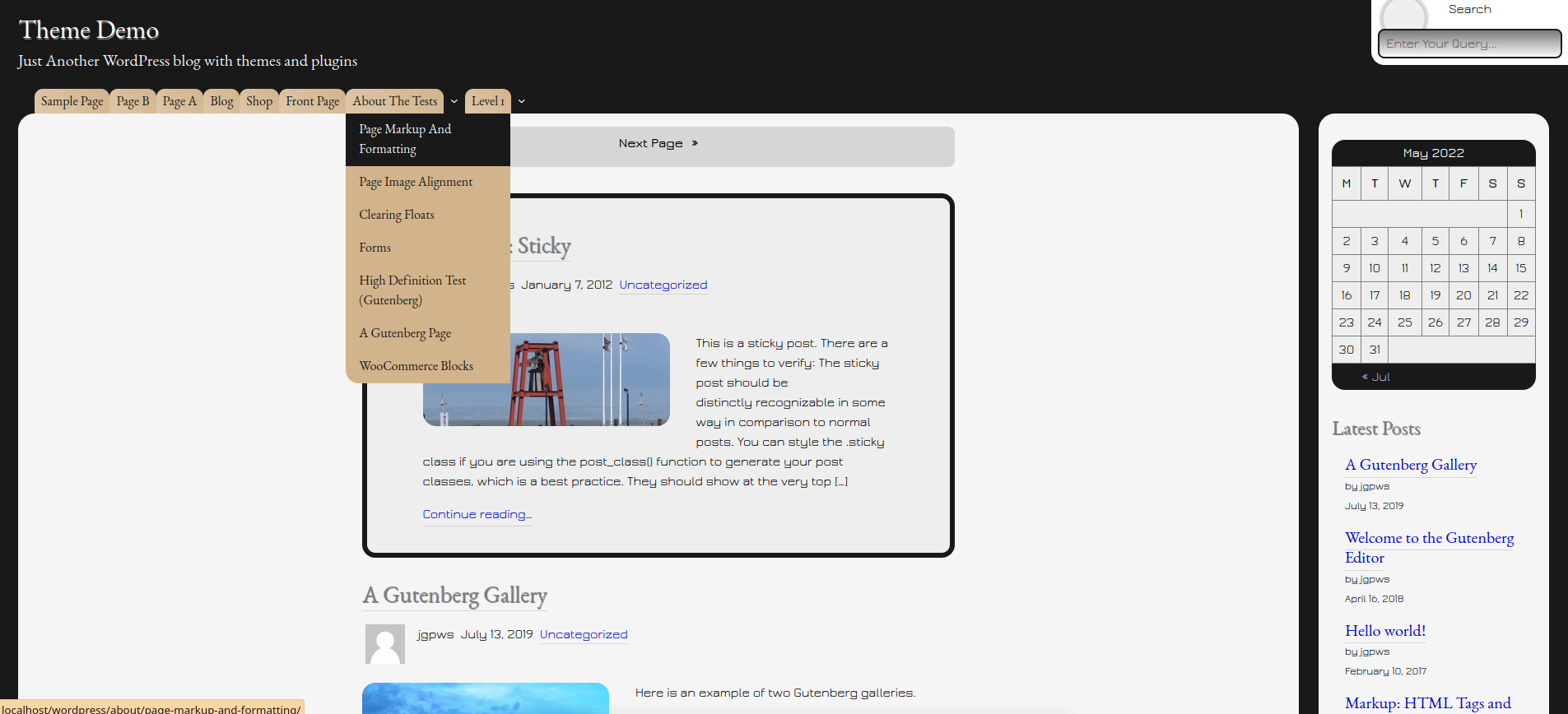
Sporting rounded corners on several elements, Mixin’ Styles- GB supports single columns and sidebar layouts via a collection of templates and patterns.
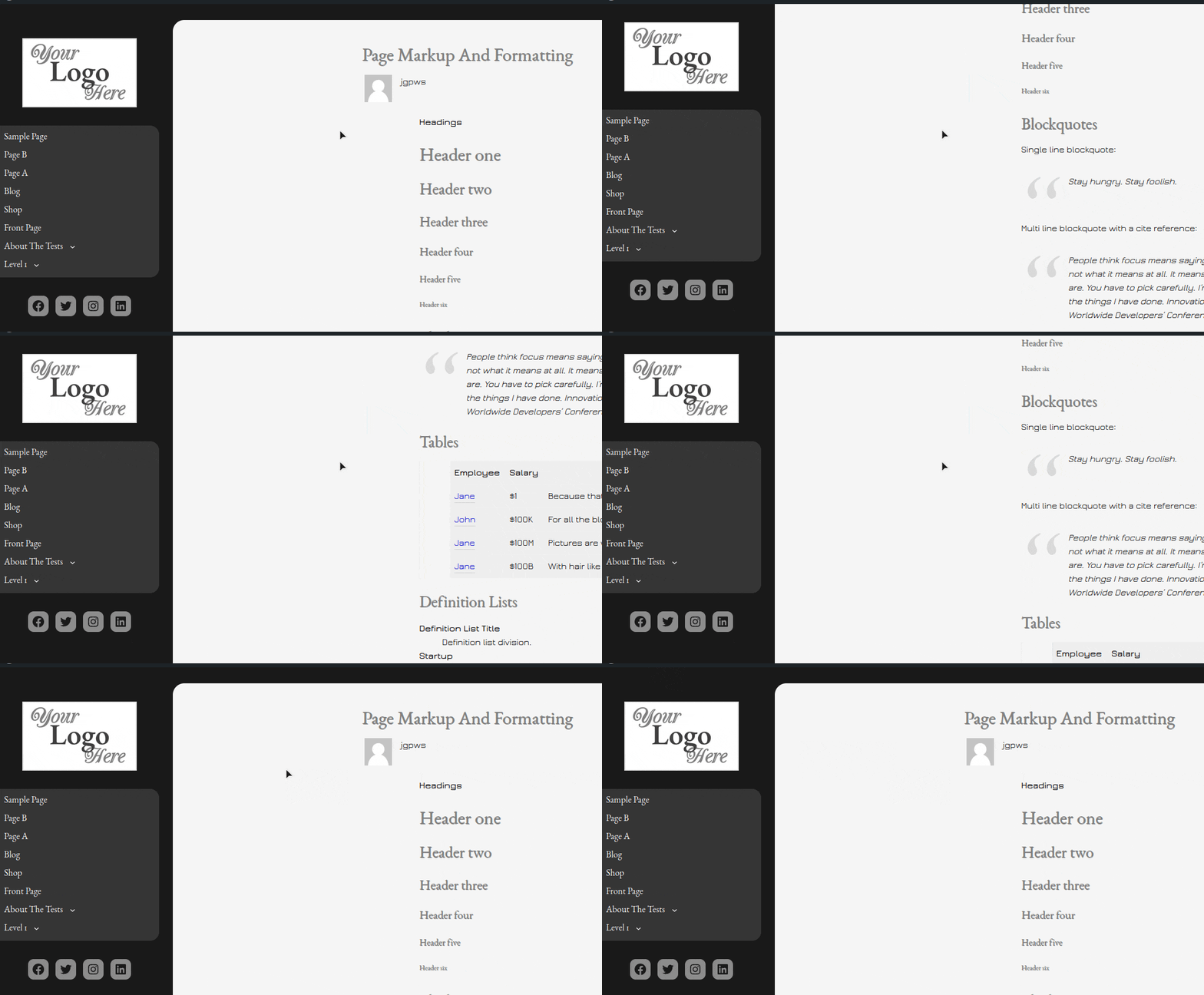
Custom templates include a page with a left-side fixed vertical header, a page with no sidebar and a no sidebar block variation.
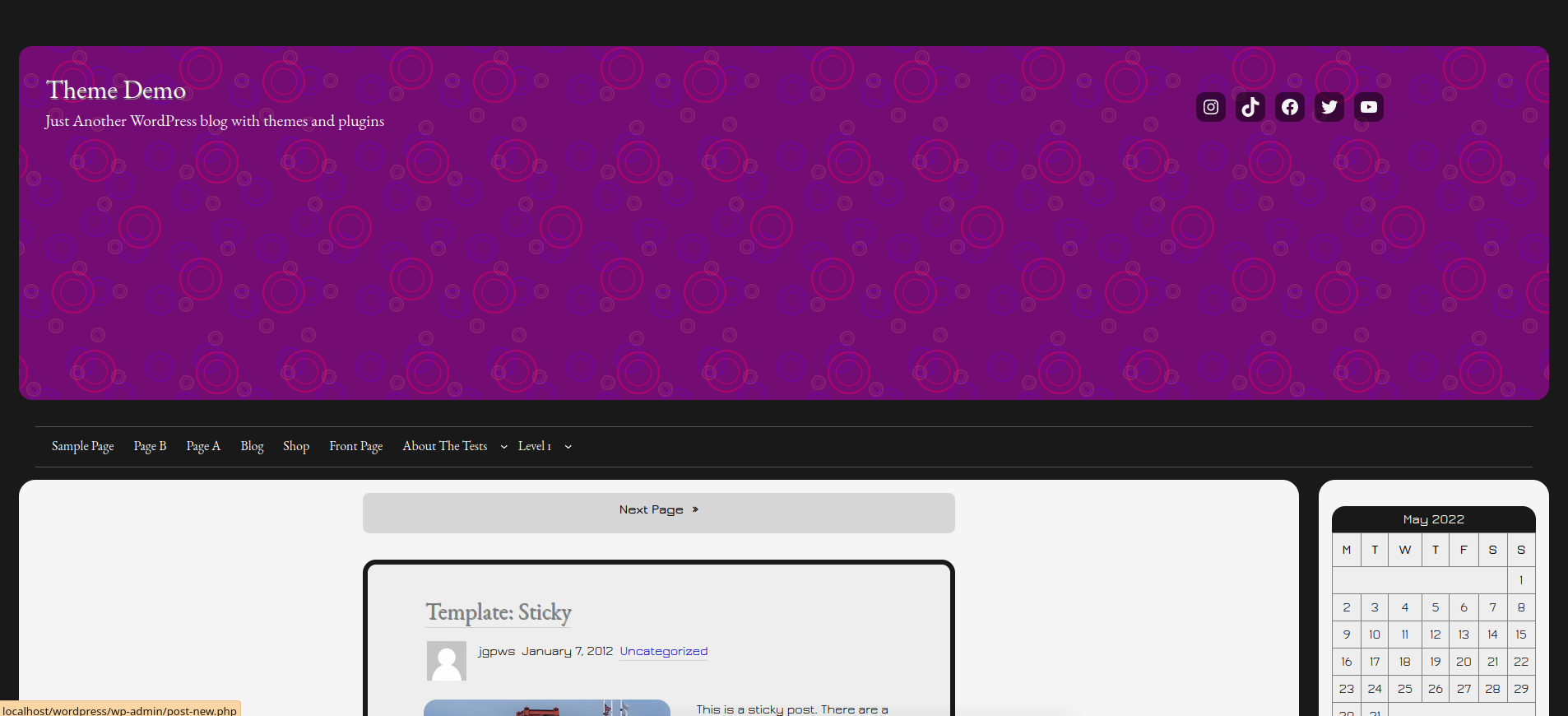
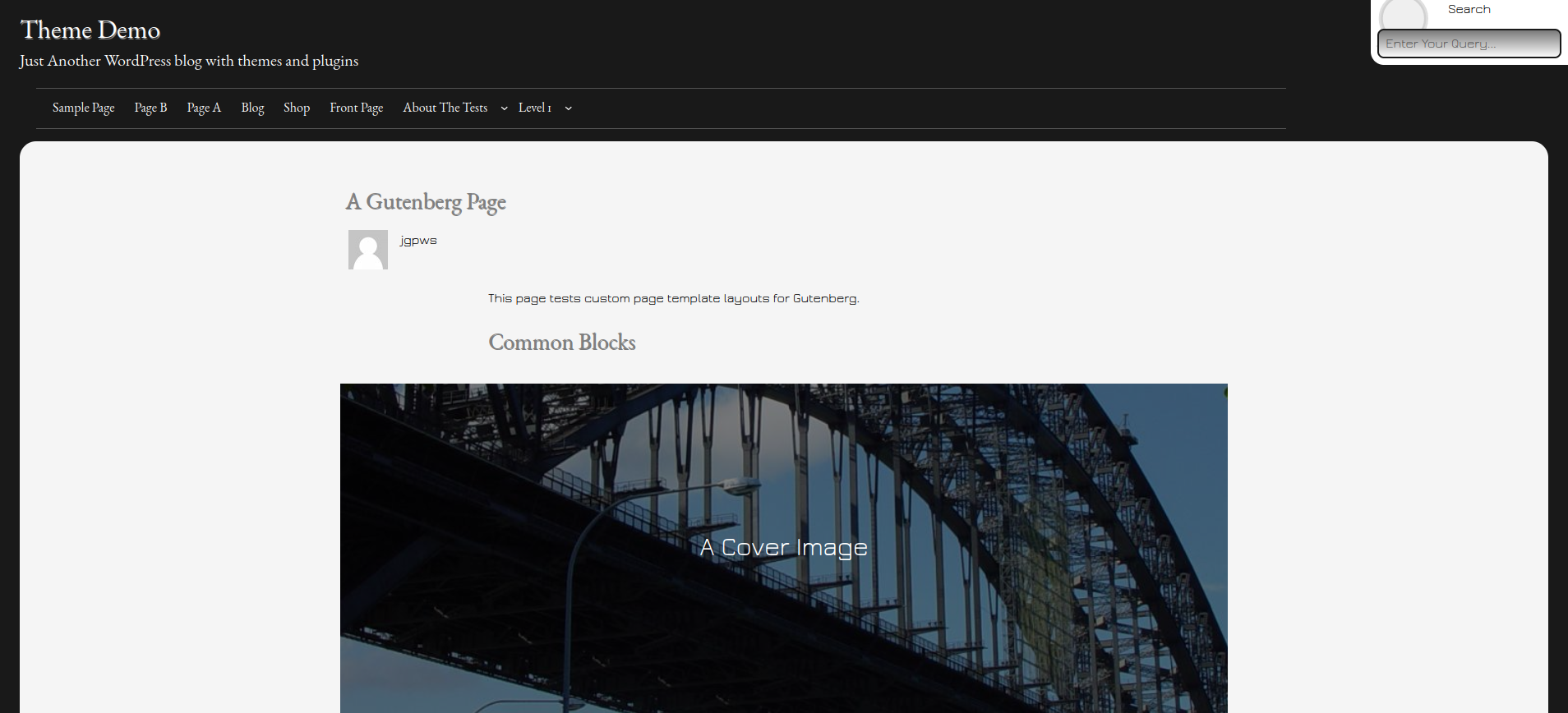
The theme offers four header styles including two with hero images.
Choose from nine color styles and seven additional fonts.
Make your blog or website as unique as you wish with the power of full site editing.
Mixin’ Styles- GB is the block variation of the Mixin’ Styles classic theme.
Specifications
| Theme Version: | 1.5 |
| Works with WordPress version: | 6.6+ |
| Tested in browsers: | Chromium (Linux- latest version), Firefox (Linux- latest version), Opera |
| Questions/Fixes?: | Use contact form below |
| Portfolio/Contact: | www.jgpws.com/portfolio jasonatjasong-designs.com |
Media and Theme Preview
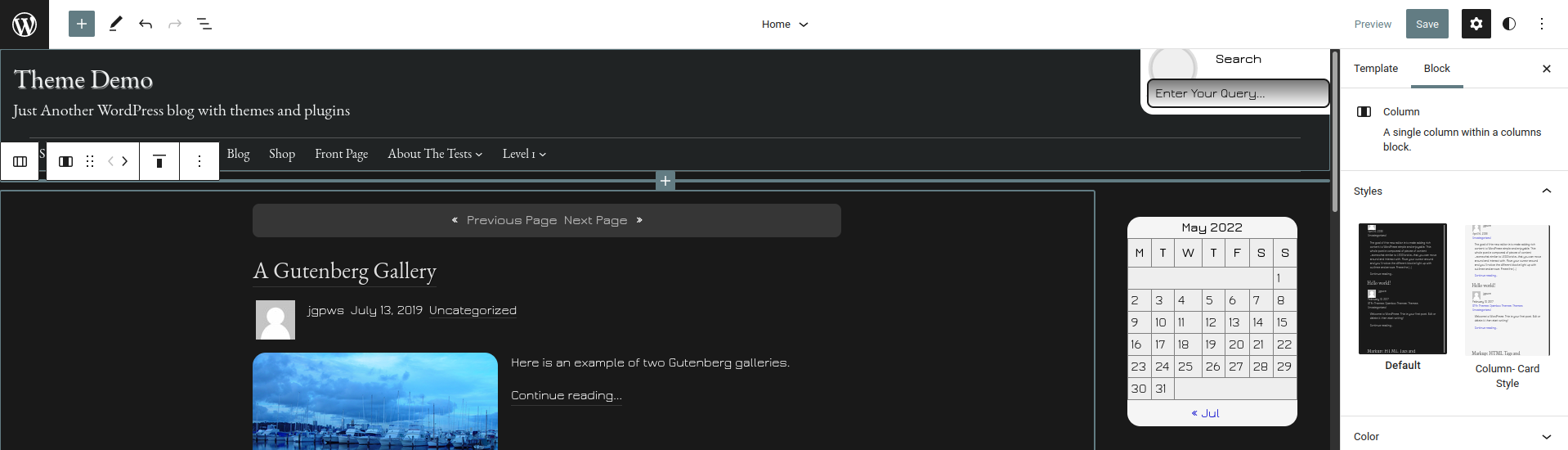
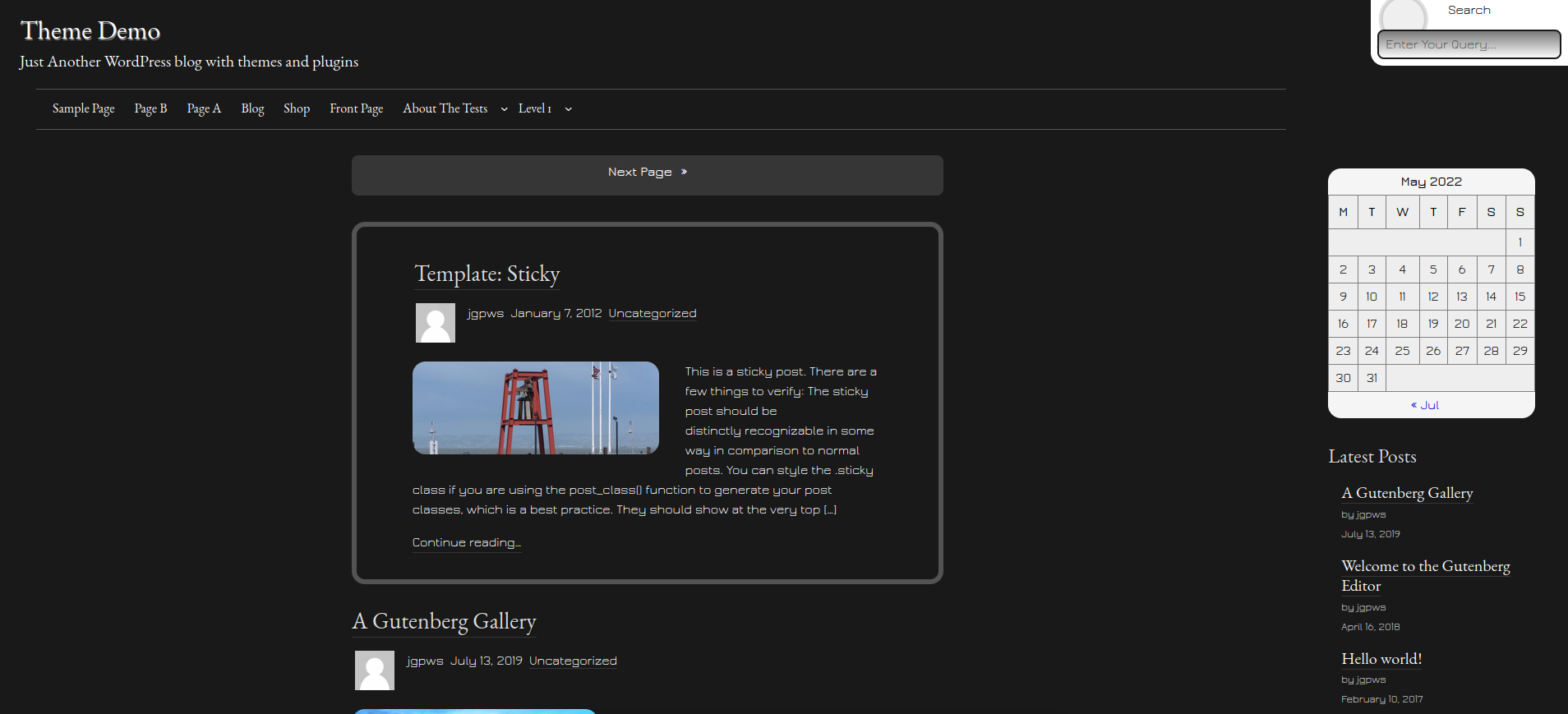
Mixin’ Styles- GB Documentation
How to Replace the Default Header with Another One
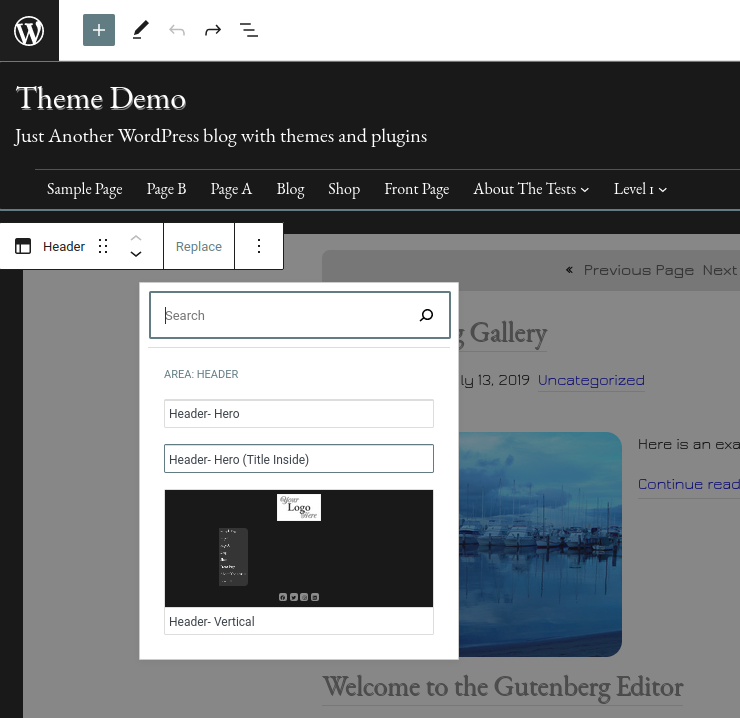
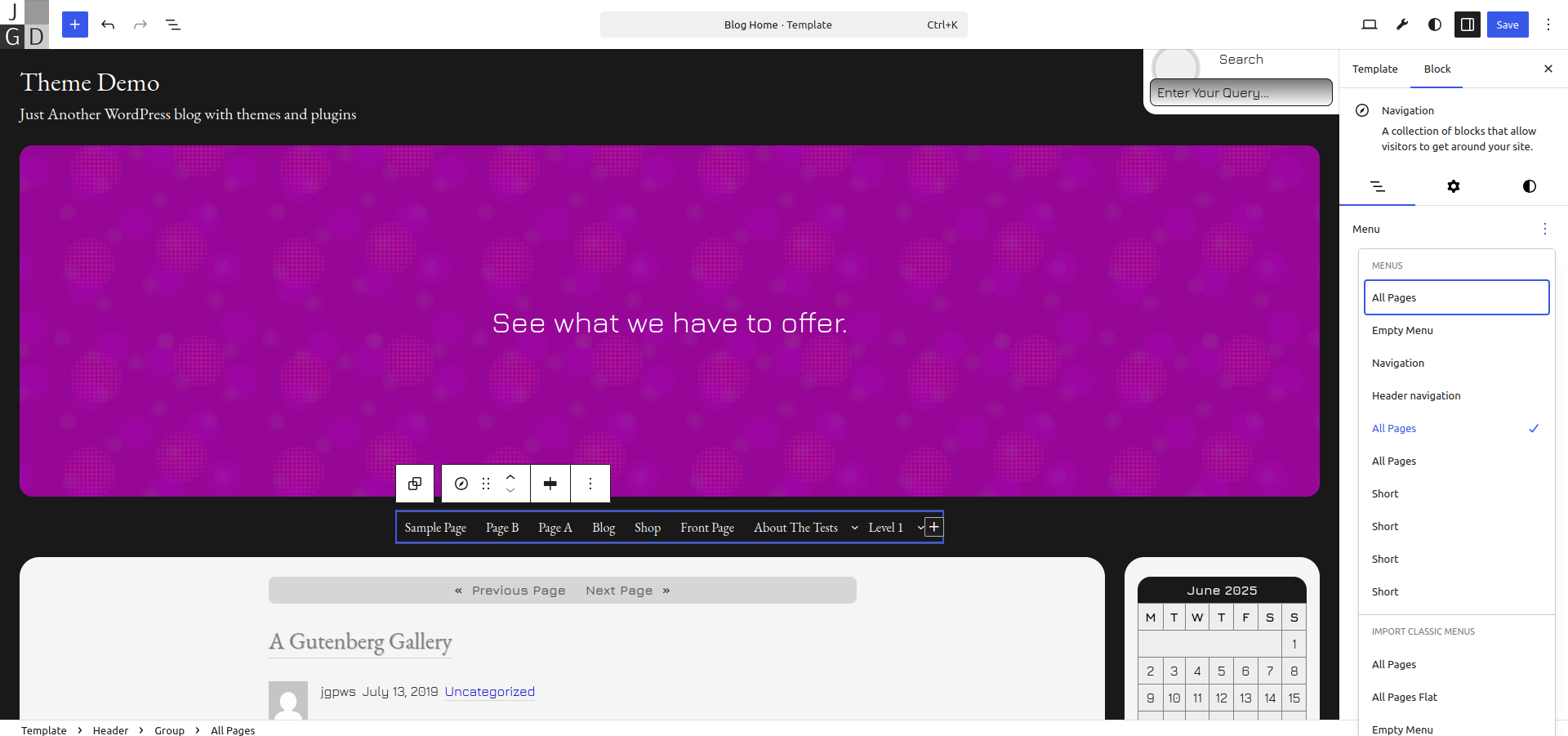
Here is an example of how to replace the default header with the Hero Image header.
Step 1: In the Site Editor select the Header by clicking inside of it. The breadcrumbs at the bottom should show Template > Header.
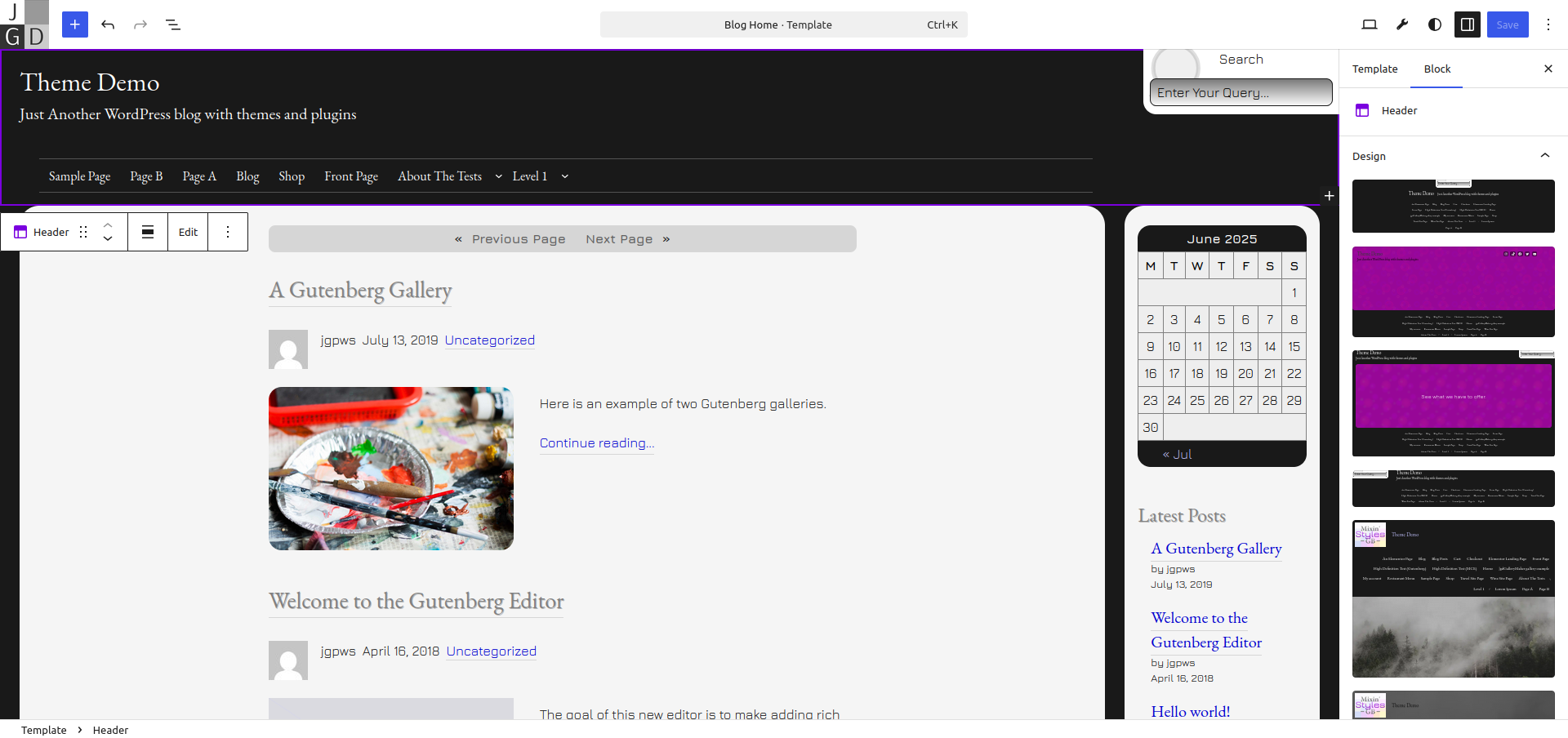
Step 2: In the Design panel on the right, choose a new header from the selections available.
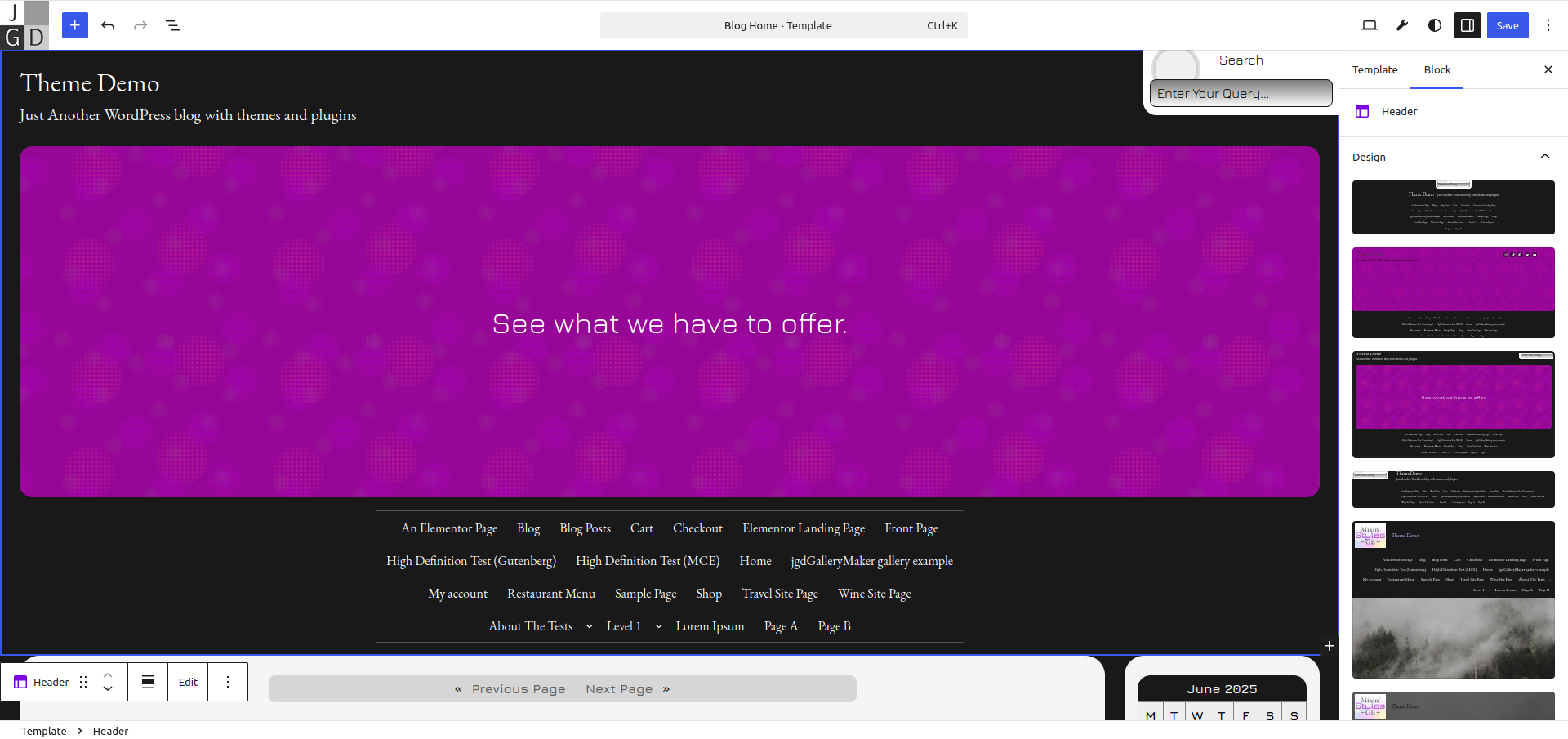
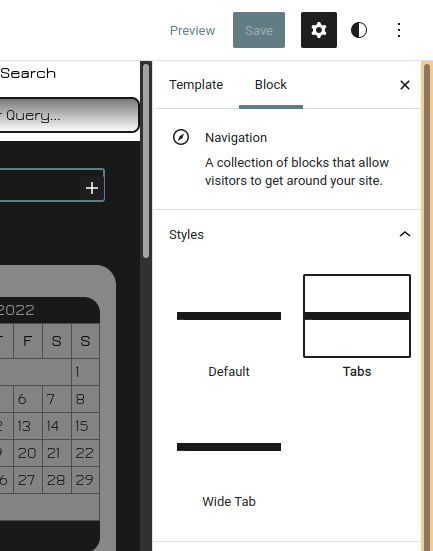
Step 3: Adjust the menu as you see fit by selecting the Navigation block. Click Save to commit it to the website front end.
How to Change the Featured Image Size
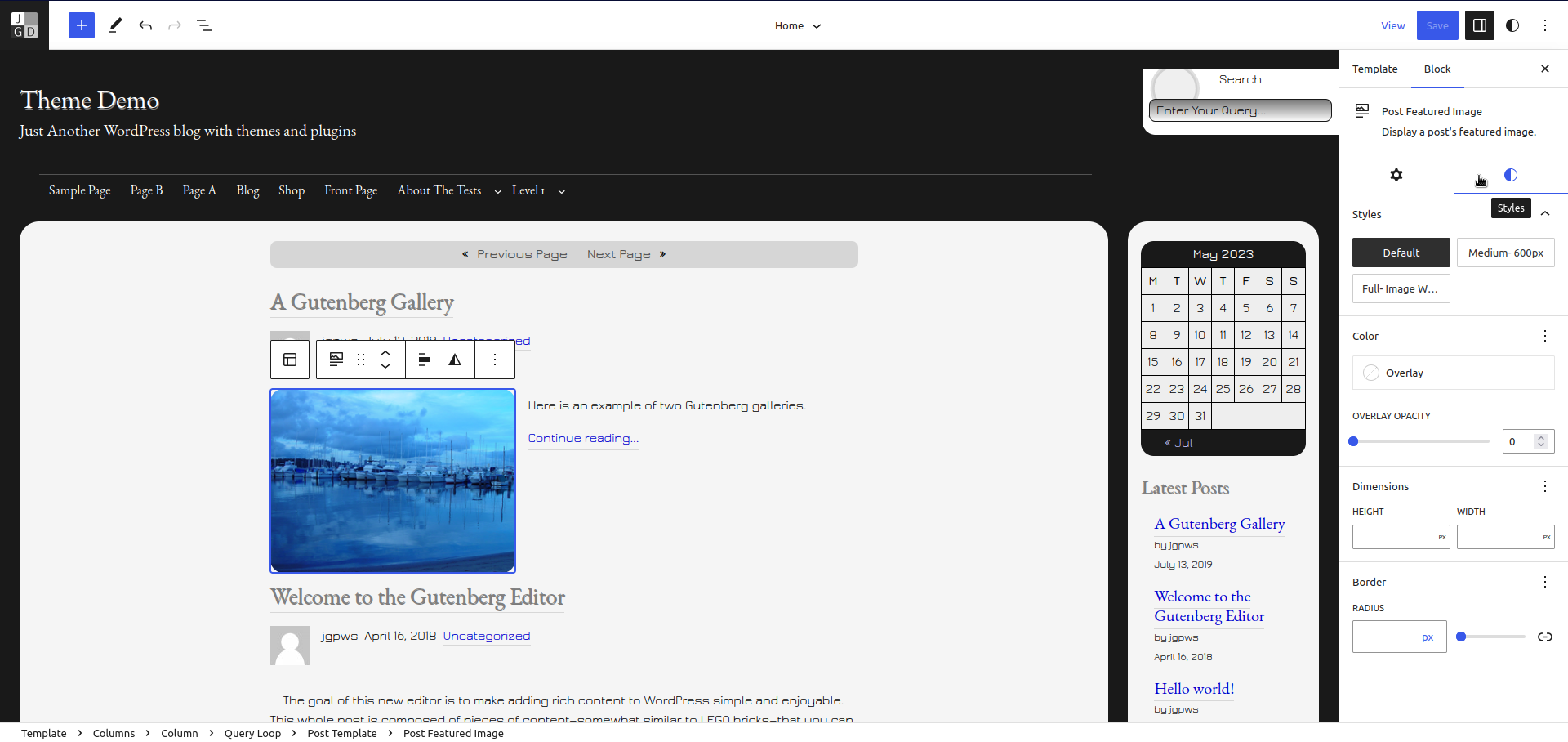
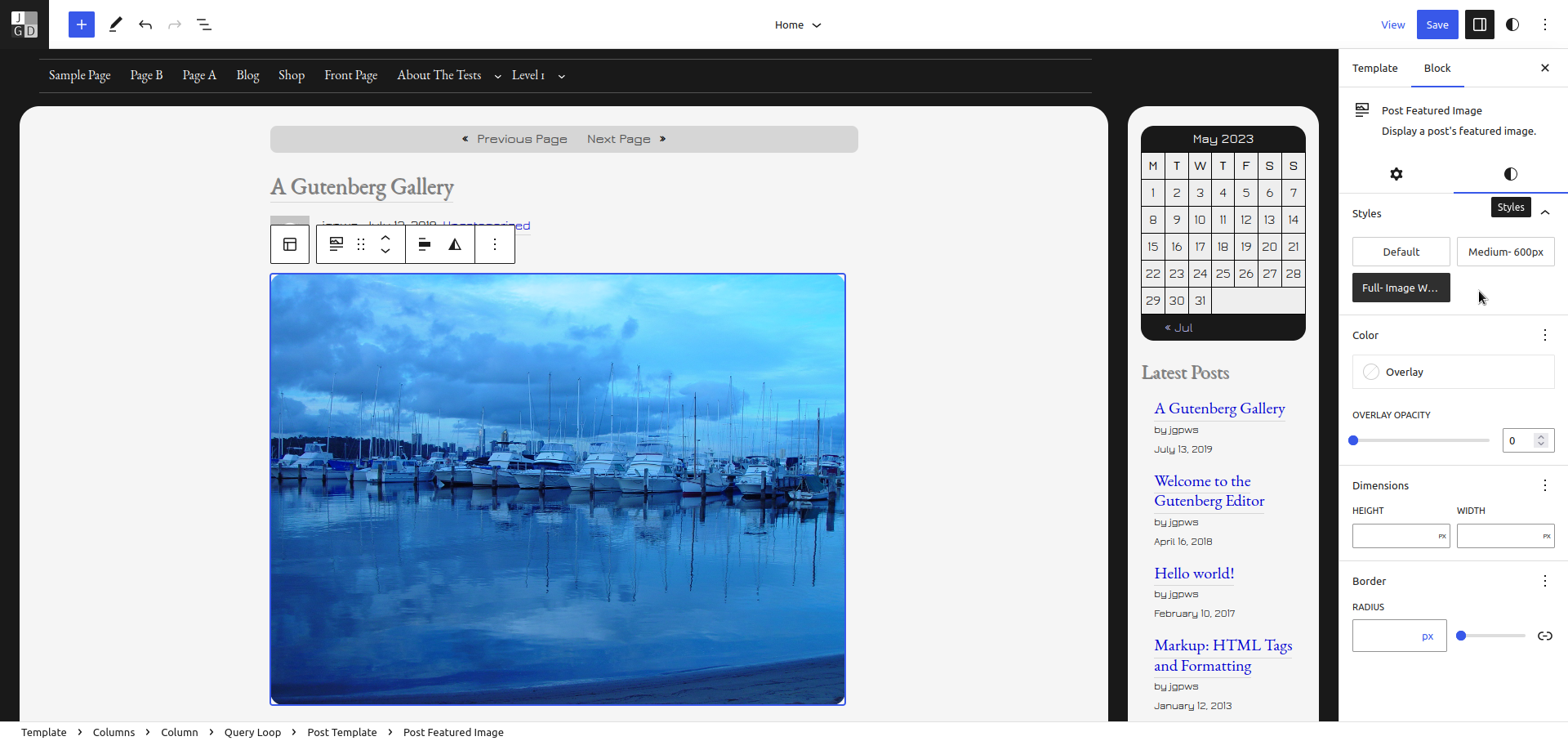
Mixin’ Styles- GB has three Featured Image sizes in addition to the Dimensions panel. There is Thumbnail, Medium and Full Image width.
Step 1: Make sure a Featured Image is selected and click the icon for the Styles tab.
Step 2: Choose image size in the Style tab
How to Remove the Card Styling from a Block
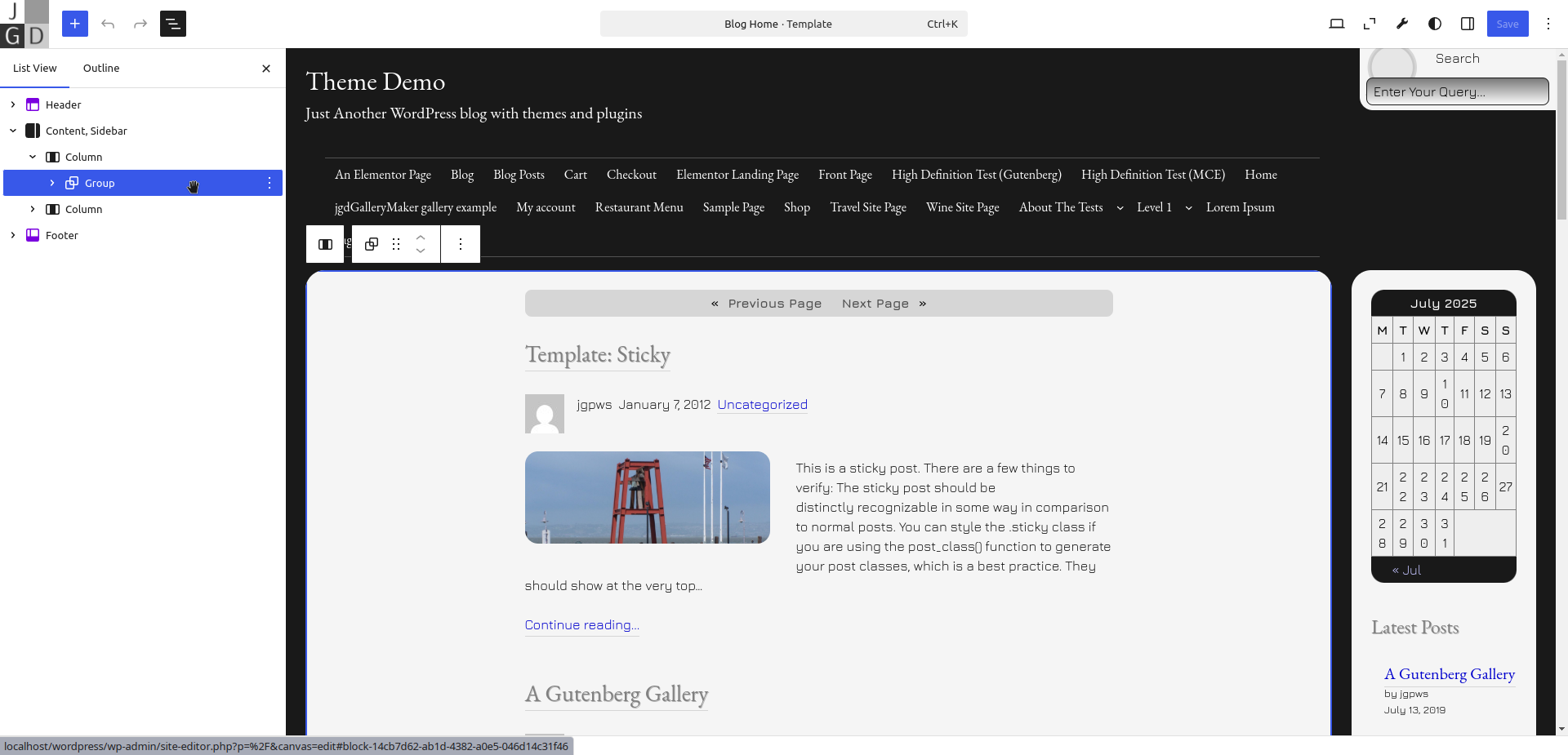
The Card style is an option only for the Group block. In this example, we will remove the Card styling from the Group block that surrounds posts on the blog front page.
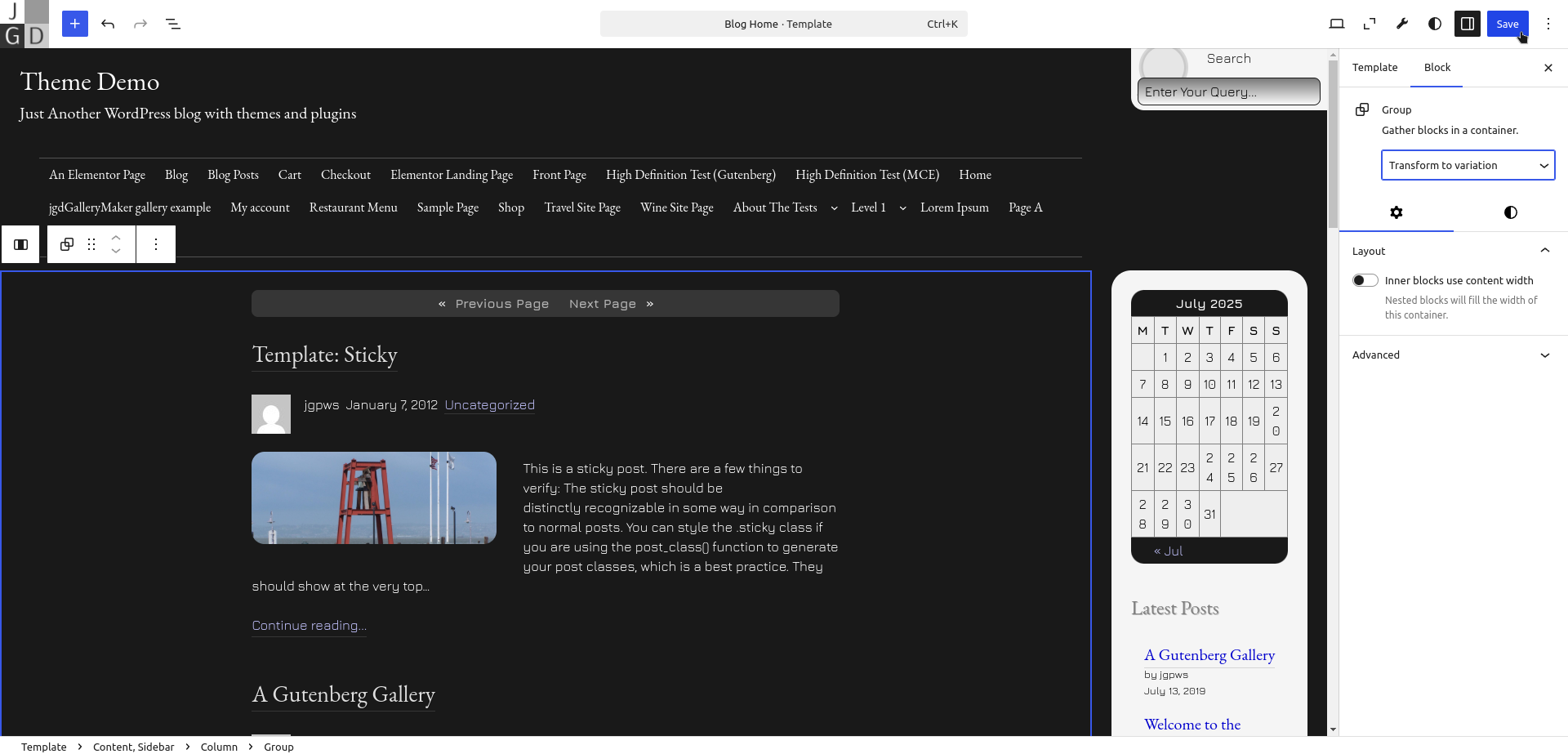
Step 1: Making sure Home is selected from the Template drop down at the top, use List View to select the Group block.
Step 2: In the Setting menu under Block, use the Transform to variation select box to choose No Card Style- Content.
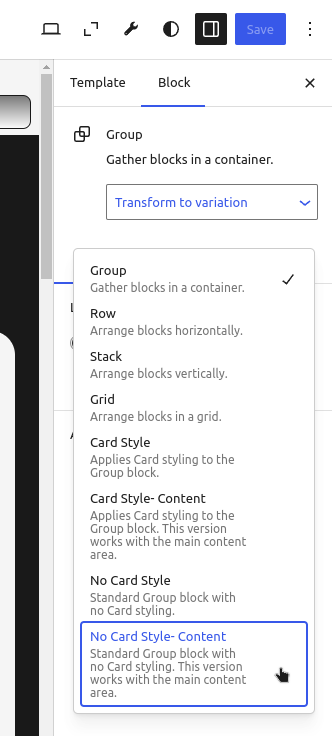
Step 3: Save to commit to the front end.
How to Move the Sidebar to the Left
Step 1: Select the two column structure that holds the posts loop and sidebar. A good idea is to look at the breadcrumb links at the bottom and select Content, Sidebar.
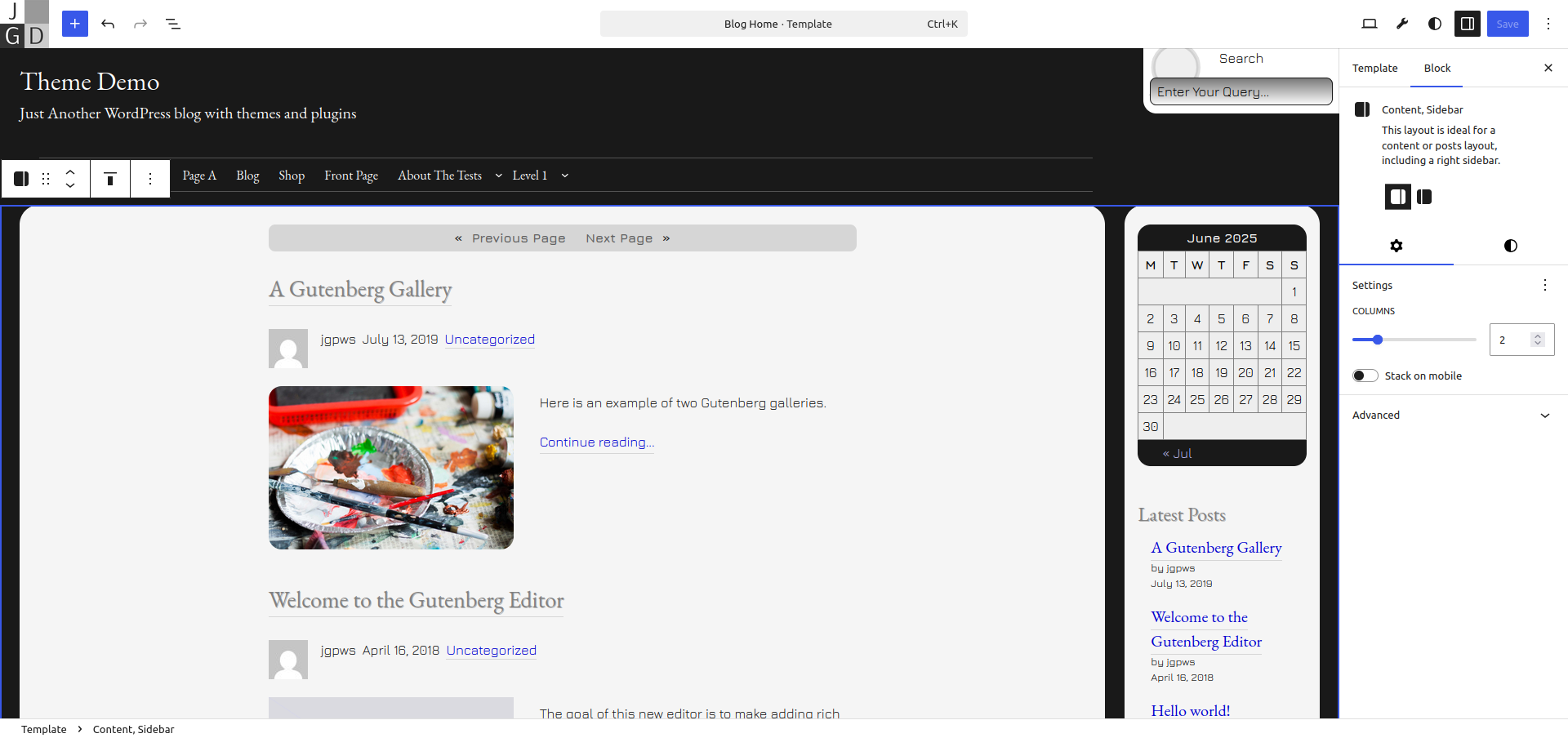
Step 2: In the Block tab at the right, select Transform to Sidebar, Content.
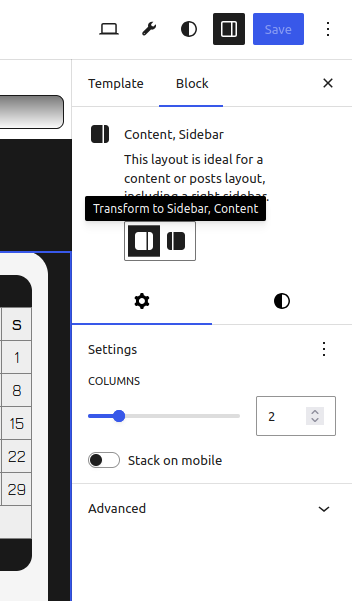
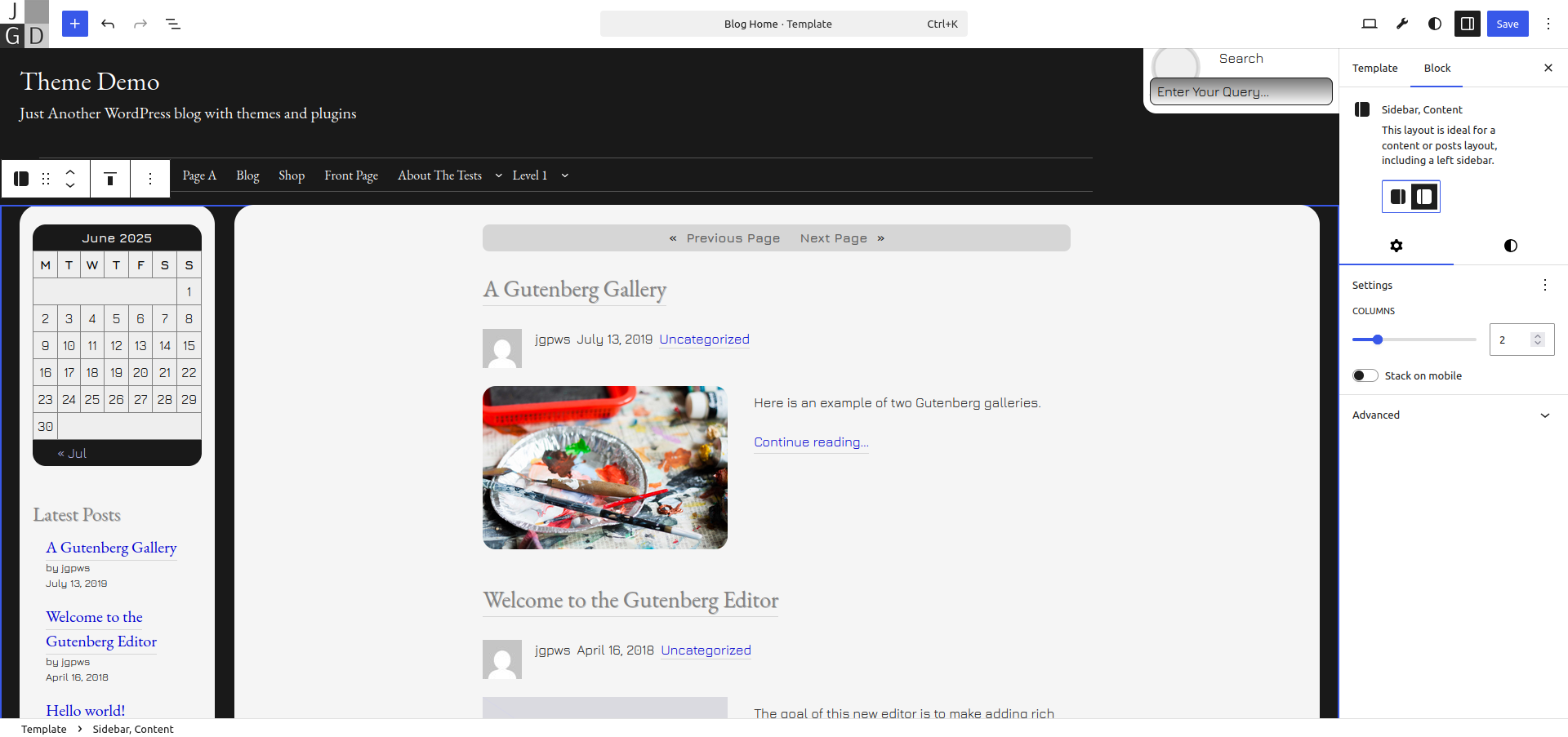
Step 3: The layout is now Sidebar, Content. Click Save.
How to Replace Two Column Blog Layout with a Single Column
Many people prefer a one-column layout for their blog posts page. Here is how you can replace the column and sidebar with a single column.
Step 1: Select the two column structure that holds the posts loop and sidebar (Content, Sidebar). A good idea is to look at the breadcrumb links at the bottom.
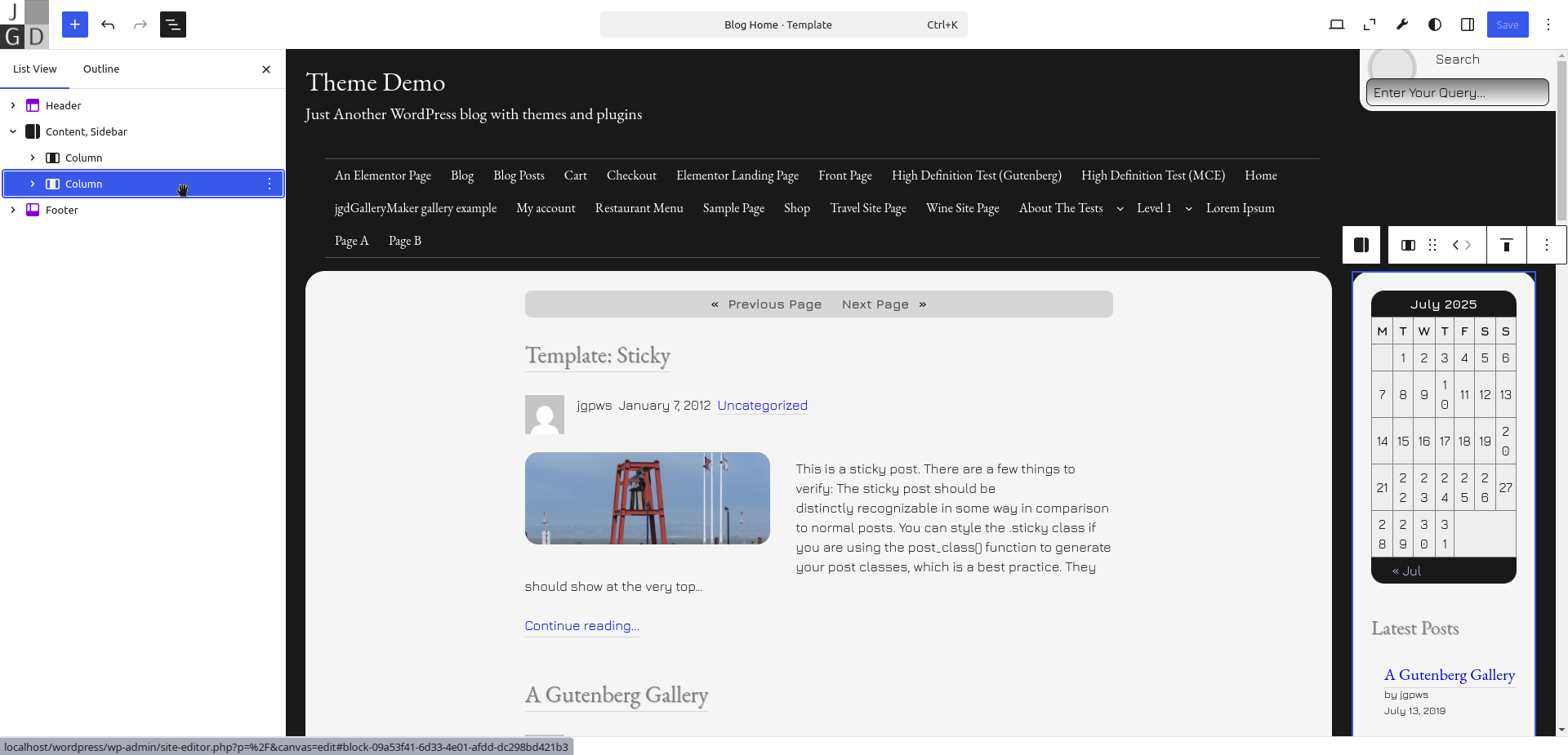
Step 2: Open Document Overview by clicking the list button up top. Within the List View, click the second column representing the Sidebar.
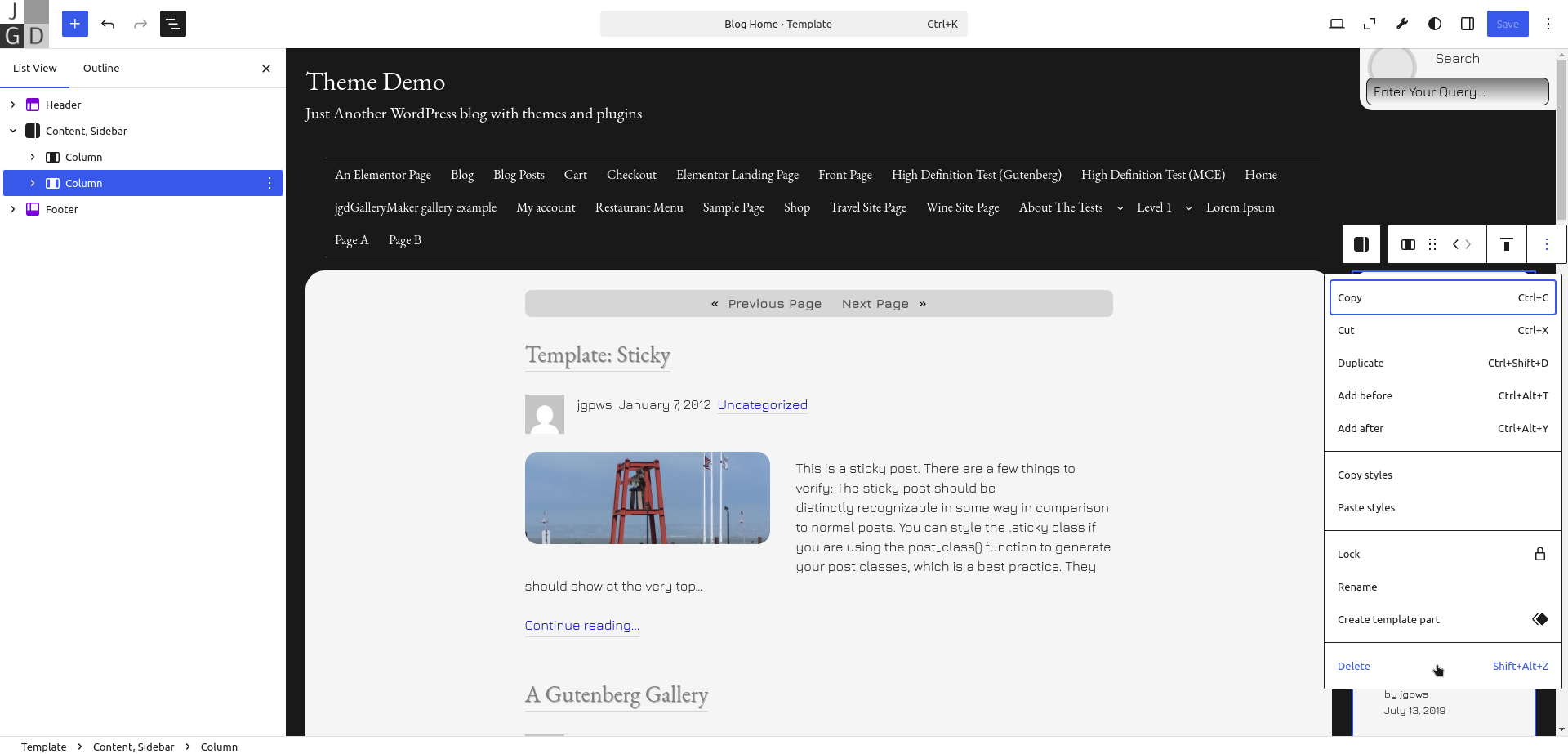
Step 3: In the Options button for the Sidebar column, select Delete.
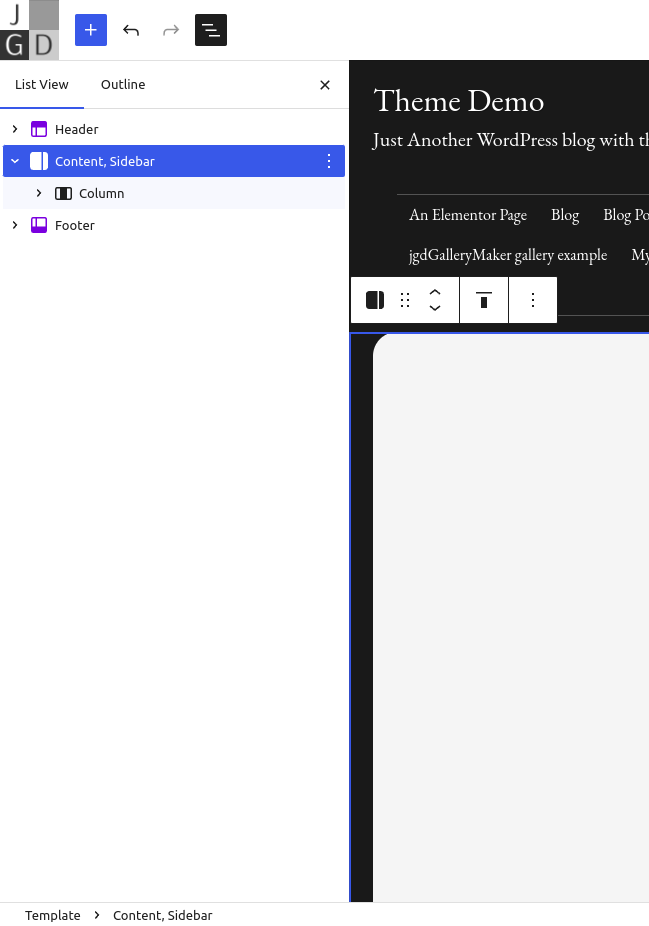
Step 4: In the List View, select the Content, Sidebar element.
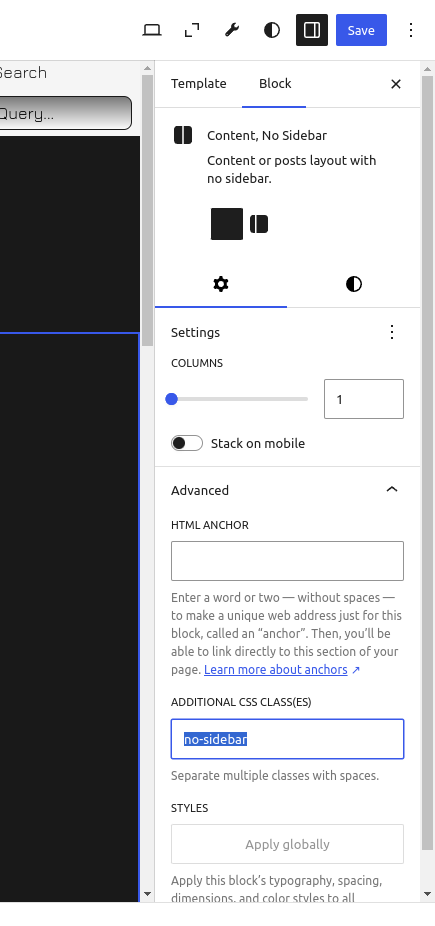
Step 4: Select the Settings button to bring up the Block tab. At the bottom, change the class name for content-sidebar to no-sidebar.
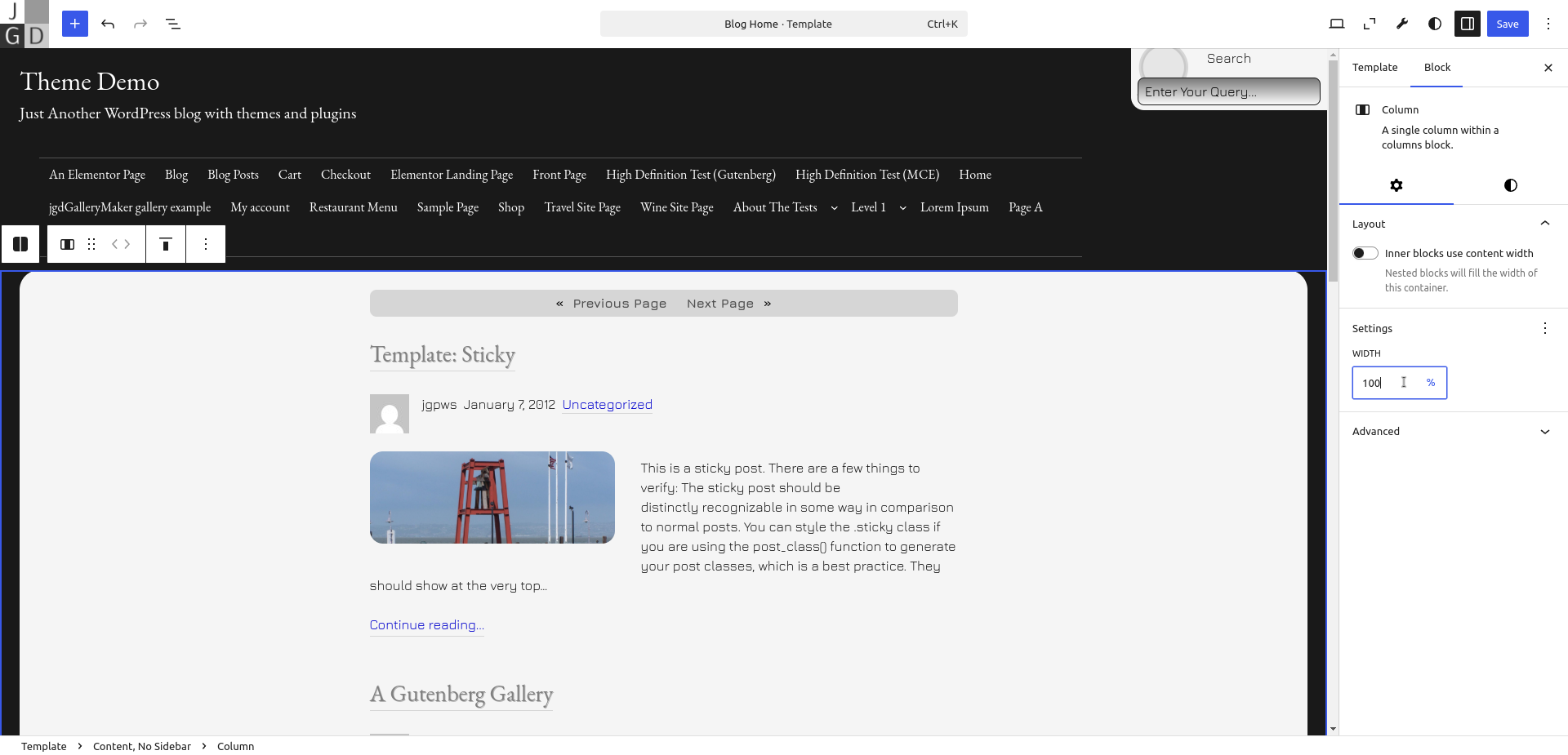
Step 5: Selecting the Column within the new Content, No Sidebar structure, in the column layout section, change the width to 100%.
Changelog
1.5.2 March 07 2026
CSS bug fixes to remove default list styling from Navigation block with Flat Nav style; fixes for sub-menus in Thin Header (pattern).
1.5.1 February 27 2026
CSS fixes for certain list based blocks; removed source map from style.css file.
1.5 February 26 2026
Added automatic dark and light background contrast styles for the Site Editor to match the frontend; made the new Thin Header and Flat block styles compatible with the contrast script; re-organized font typesets, color schemes; adjusted CSS in backend for Gallery block.
1.4.1 December 11 2025
Fixed Navigation CSS when Overlay mode is turned off.
1.4.0 December 10 2025
Added two new button styles- flat and disappearing; added new nav styles; two new header templates, etc.
1.3.2 July 17 2025
Added content Group blocks to each of the Columns variations; changed gradient for text area elements (style variations).
1.3.1 July 17 2025
CSS fixes for the Cover block; CSS fix for link underline (border) in dark mode.
1.3 July 11 2025
Major Update: Even though little has changed about the look, Card styling now uses Block Variations for the design instead of the hard-coded Block Style. New, separate block styles were added for the Group block. Made some refinements to three Style Variations.
1.2.2 June 10 2025
Removed ref attributes from the header files. Default nav menu wasn’t showing up.
1.2.1 June 6 2025
Bug fix: Error in block-variations.js caused the file to not execute; fixed const redeclare issue.
1.2- June 5 2025
Added new Google fonts, used Google font replacements for the theme’s fonts; fixed user selected submenu styles for the Page List block; removed Block Styles for posts layouts in favor of Block Variations; removed Posts- No Sidebar pattern, replaced with general Posts pattern; Added font size definitions in theme.json; adjusted line heights accordingly.
1.1.3- April 16 2025
More CSS adjustments for links in the Card style.
1.1.2- April 10 2025
Fixed Navigation design for WordPress 6.7, removing double borders on nav menus. Changed all buttons to use theme.json for background and hover colors. Adjusted Outline button style.
1.1.1- July 7 2023
Added missing gradient override in tan.json and sandstone.json variations.
1.1- July 7 2023
MAJOR UPDATE: Introduced Style Variations to the theme; adjusted Navigation CSS to use the built in Submenu colors; cleaned up the styling in the Site Editor backend; Introduced per block CSS loading; buttons now use generic gradient slugs; increased brightness for Cover blocks in the Hero patterns.
1.0.17- April 9 2023
CSS adjustments for the Navigation block, pre tag.
1.0.16- April 6 2023
CSS adjustments for the Navigation block, pre tag.
1.0.15- April 5 2023
Removed absolute positioning from the Header templates for search bar. Replaced with CSS Grid structure; removed some Header template parts, as Patterns can be used.
1.0.14- March 29 2023
Added updated entry meta Row block to the Posts- No sidebar pattern; moved patterns into Patterns directory; updated queries to five posts per page.
1.0.13- March 27 2023
Adjusted the Posts- No sidebar pattern to use a new structure.
1.0.12- March 25 2023
Changed class name in the Header- hero pattern; removed ref attribute from the navigation block code.
1.0.11- March 22 2023
Adjusted Post Featured Image block to work with the Site Editor; introduced three featured image styles- Thumbnail, Medium and Full; removed the Card styling from Columns and applied to Group/Query blocks.
1.0.10- March 16 2023
Adjusted the structure of block templates; removed two block styles, etc.
1.0.9- March 13 2023
Restored styling for the new comments block, associated template changes, etc.
1.0.8- March 2 2023
More CSS fixes for hero pattern designs inside of card styled block.
1.0.7- March 1 2023
Added CSS Fixes for narrow columns in mobile when the Posts- No sidebar pattern is placed inside a column; fixes for the calendar block.
1.0.6- May 26 2022
Added theme URL.
1.0.5- May 25 2022
Bug fixes: Set overflow property to visible on the vertical header page template; overflow was removing the CSS sticky behavior in the header; updated color slugs in the hero header pattern code.
1.0.4- May 24 2022
Bug fix: Added CSS for Cover block backgrounds on the front end; other CSS fixes.
1.0.3- May 22 2022
Removed import statements from style.css, enqueued them in functions.php; added license information for each file in the /assets/images folder; updated screenshot.
1.0.2- May 18 2022
Added screenshot image credits to readme.txt.
1.0.1 April 11 2022
Brought the theme up to standards with the latest block editor (WordPress 5.9); added new patterns and block styles.